Nested playlists
Nesting a playlist
A playlist can be embedded inside another playlist just like any other element.
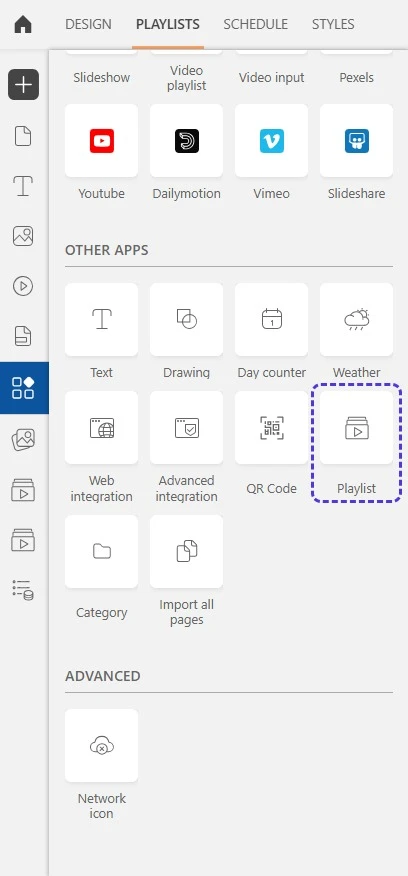
Select your playlist, then click the "Apps" button in the insert menu. Under the "Other apps" section, click the "Playlist" button and choose the playlist you want to add.
Example
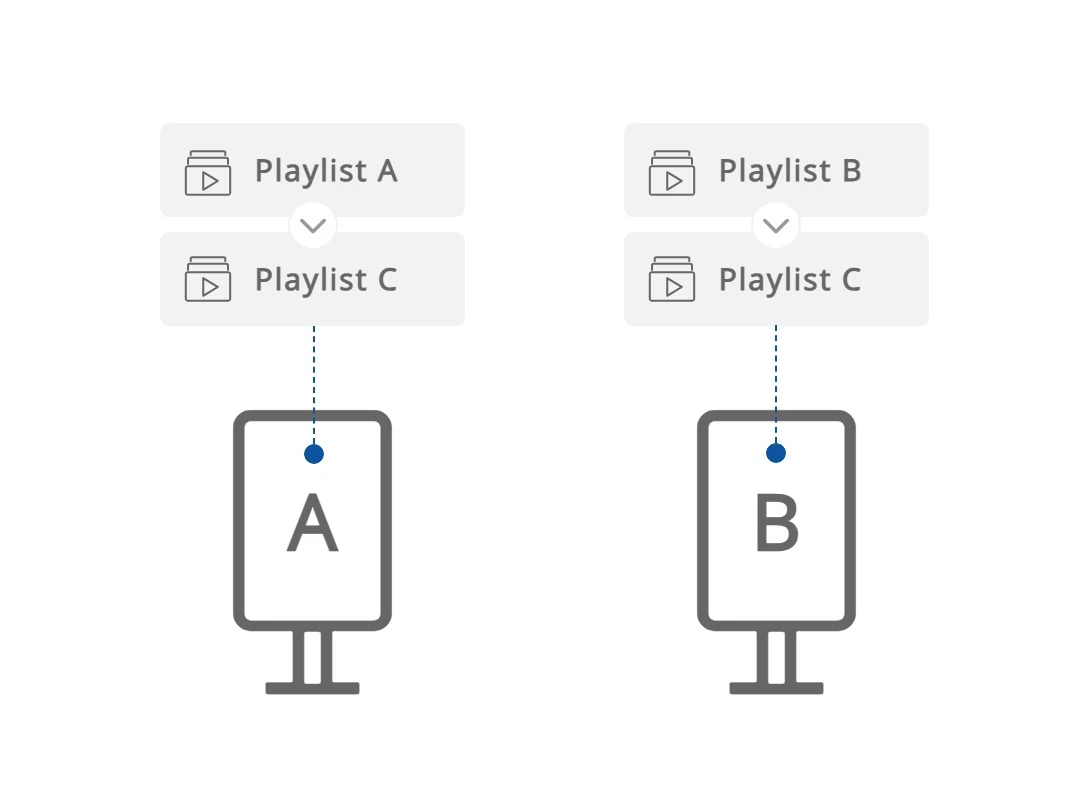
I have two display screens in my shopping mall, each playing a different playlist. I want to add the same promotional pages to both displays.
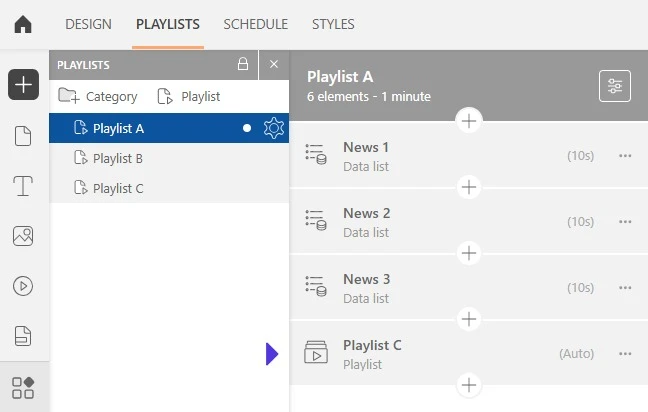
I currently have two playlists in my project: one for screen A and one for screen B. I create a playlist C and add the promotional pages I want. Once done, I go into playlist A and insert a playlist element linked to playlist C; then I do the same for playlist B.
Now, screen A plays playlist A and playlist C. Screen B plays playlist B and playlist C.
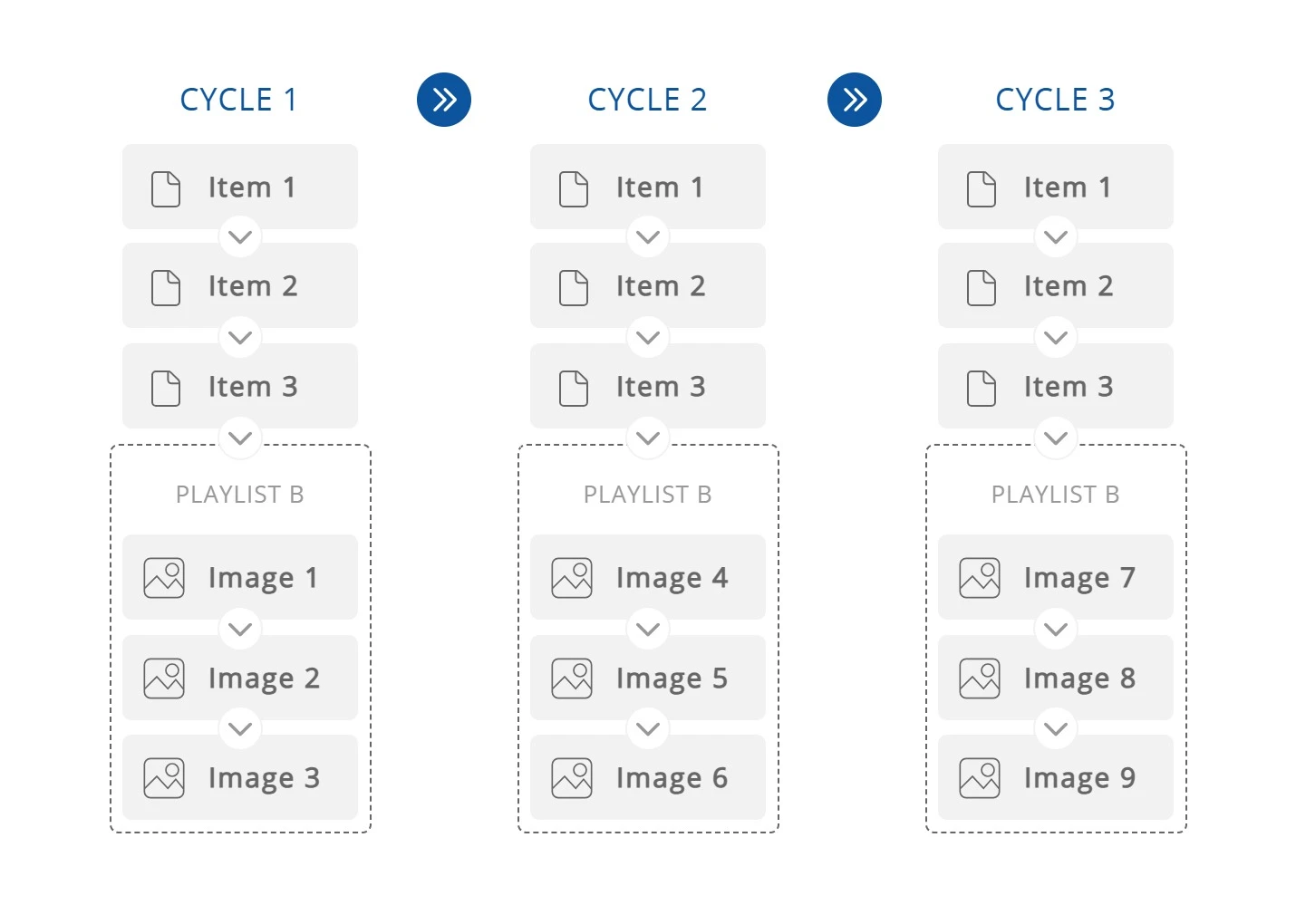
Nested playlist frequency
As an element, a nested playlist can have its own display frequency.
The display frequency lets you choose whether the element appears every cycle, or only occasionally (every X cycles, every X minutes…). To change this setting, select the element and click the "Frequency" option field in the first panel on the right side of the interface. Choose the cycle frequency or the duration before the element appears.
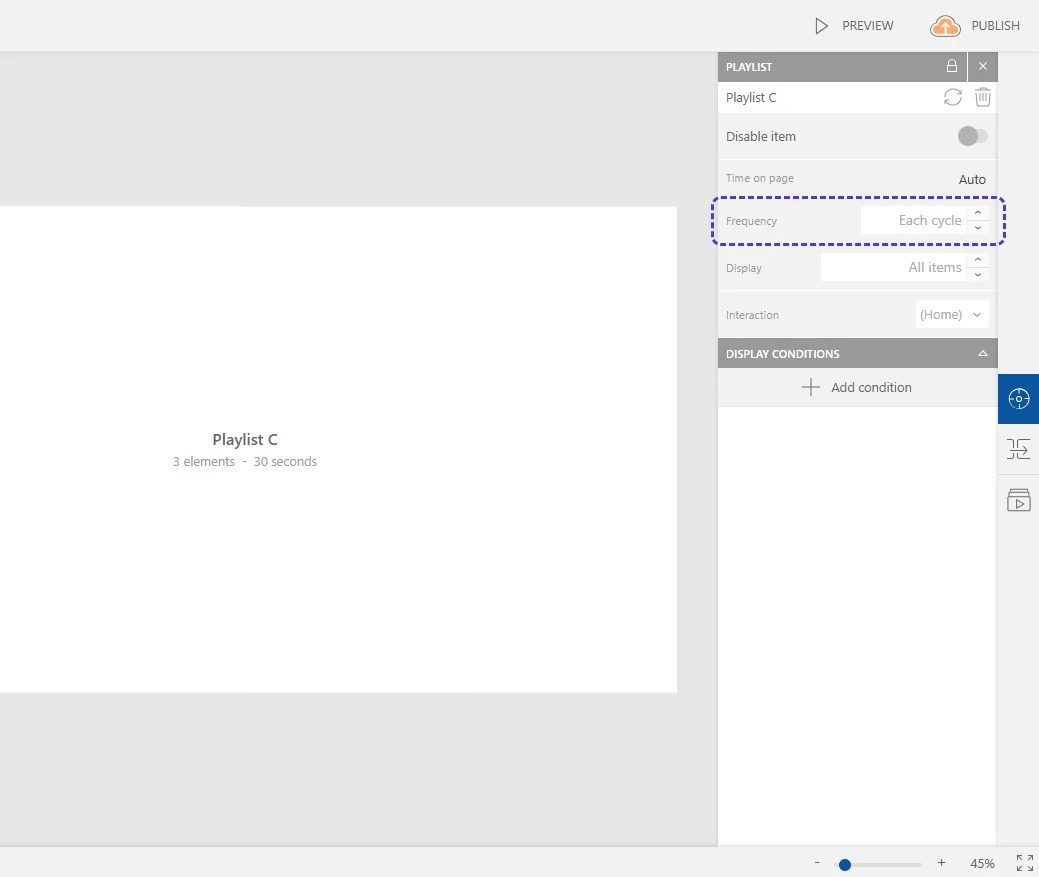
You can also choose whether the nested playlist plays in full or only partially.
Select the nested playlist element and find the "Show" field in the "Playlist" panel on the right side of the interface. Choose how many elements from the nested playlist you want to display per cycle.
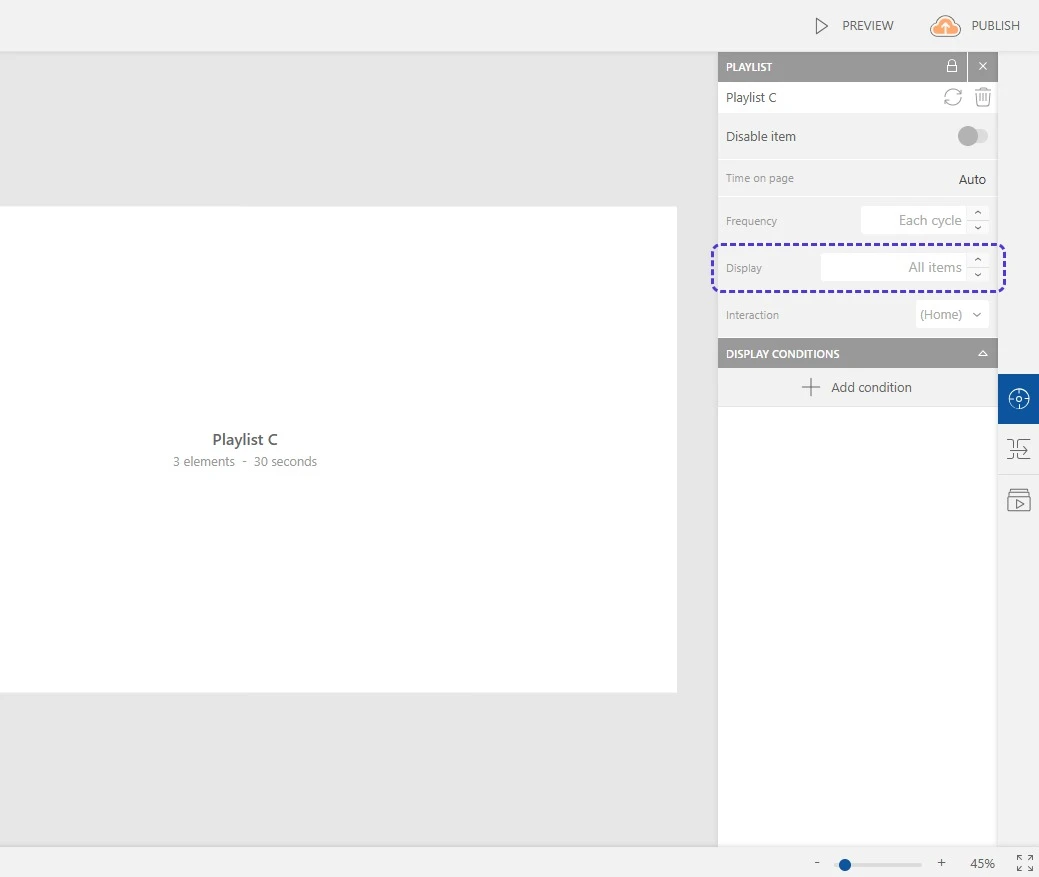
Example
I want to display photos from past events on my welcome kiosk, alongside the active playlist. I have far too many photos to show them all in sequence, but I'd like all of them to eventually be displayed.
In addition to my active playlist A, I create a second playlist B containing the 35 photos I want to show. I then go back to playlist A and nest playlist B into it: I select it and, in the "Show" field of the "Playlist" panel, I choose to display only 5 elements at a time. This way, each cycle will show 5 photos from playlist B after playlist A.