User management
In Rooms Manager, users are entities that have the right to reserve slots in your meeting rooms. They should not be confused with Administrators who are entities that can administer sites and meeting rooms.
User list
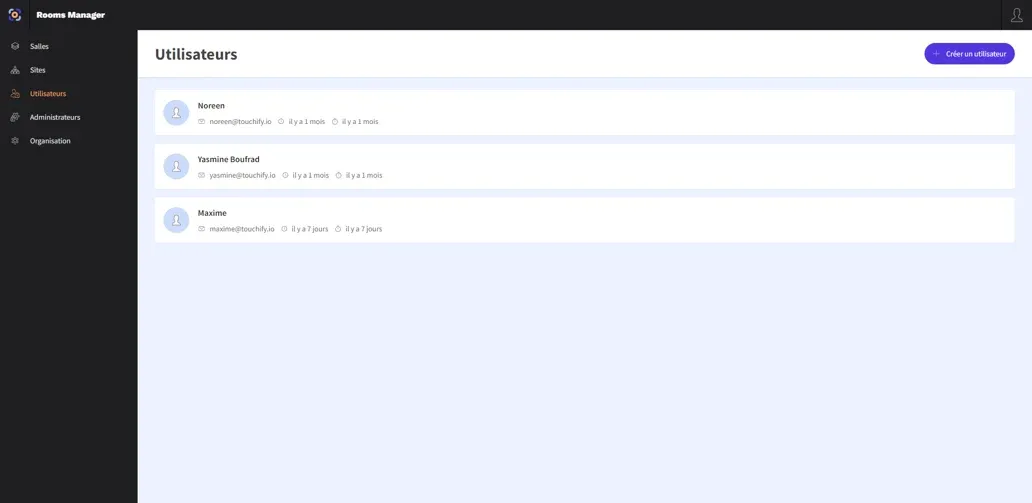
When you arrive on the Rooms Manager platform, to access your user list, click on the Users section in the main menu on the left.
Create a user
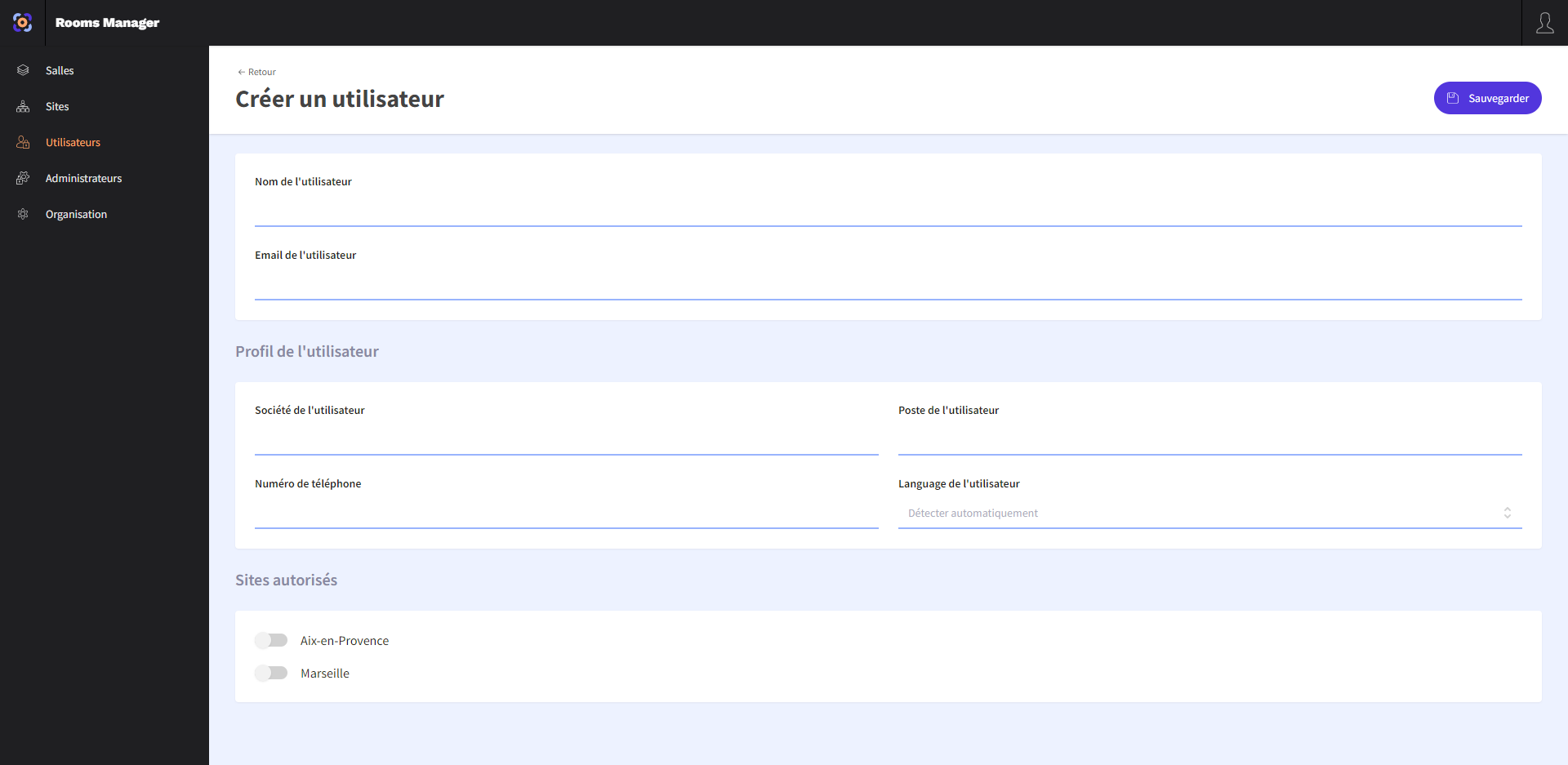
To create a new user, click the blue Create user button at the top right of the screen.
In the creation form, fill in the different sections concerning your new user then click the Save button at the top right of the screen.
The mandatory information is:
- User name: determines the user's display name (this information is public and visible to other users, for example, when clicking on a reserved slot).
- User email: defines the user's email. This email will serve as the login identifier on the web and mobile application.
- Authorized sites: determines the site(s) in which the user will have the right to reserve meeting rooms.
You can also define profile information for the user.
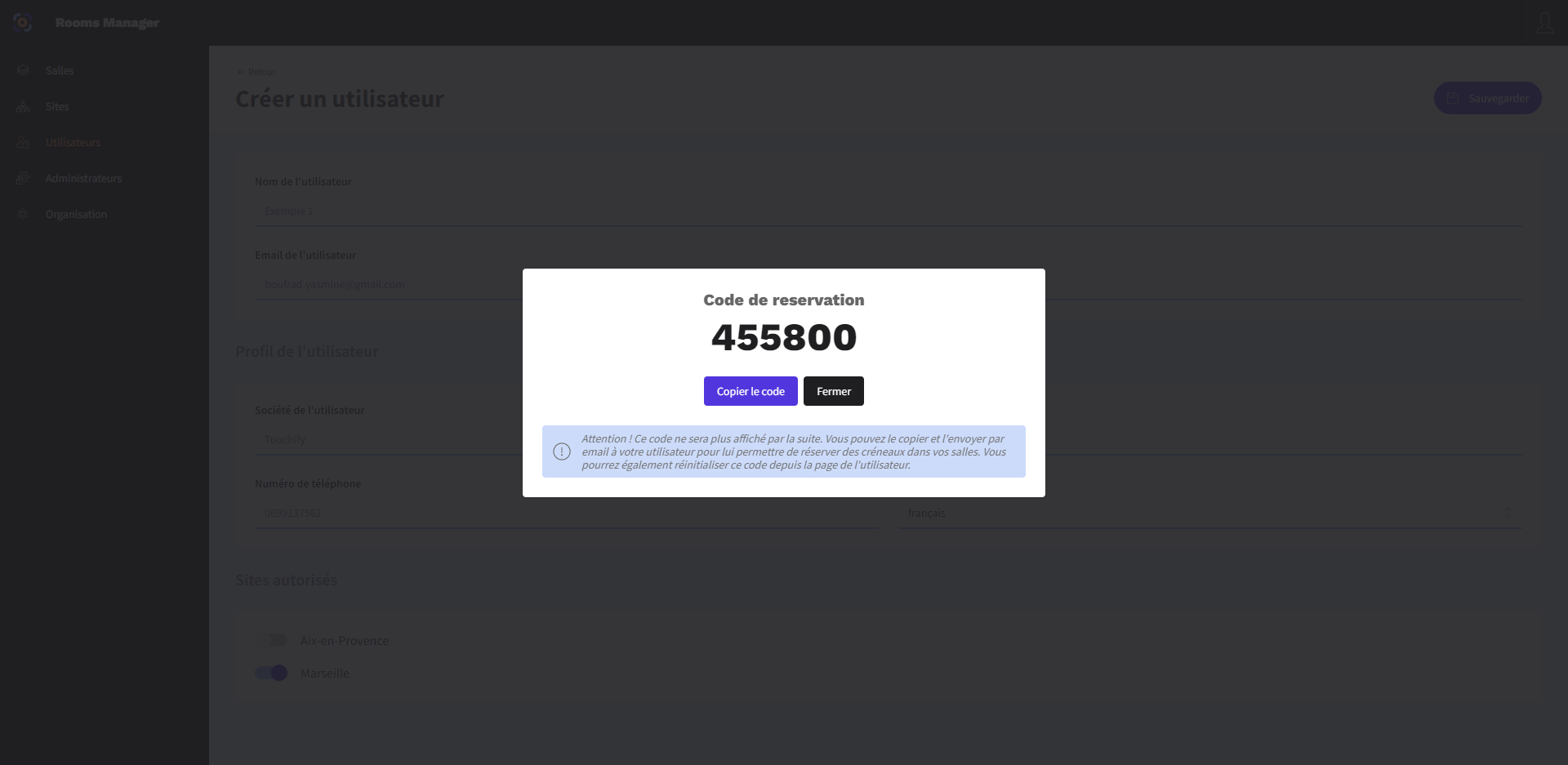
Reservation code
After saving, you get the user's reservation code. This code is very important, it is with this that the user will be able to reserve slots on tablets or identify themselves on web and mobile applications.
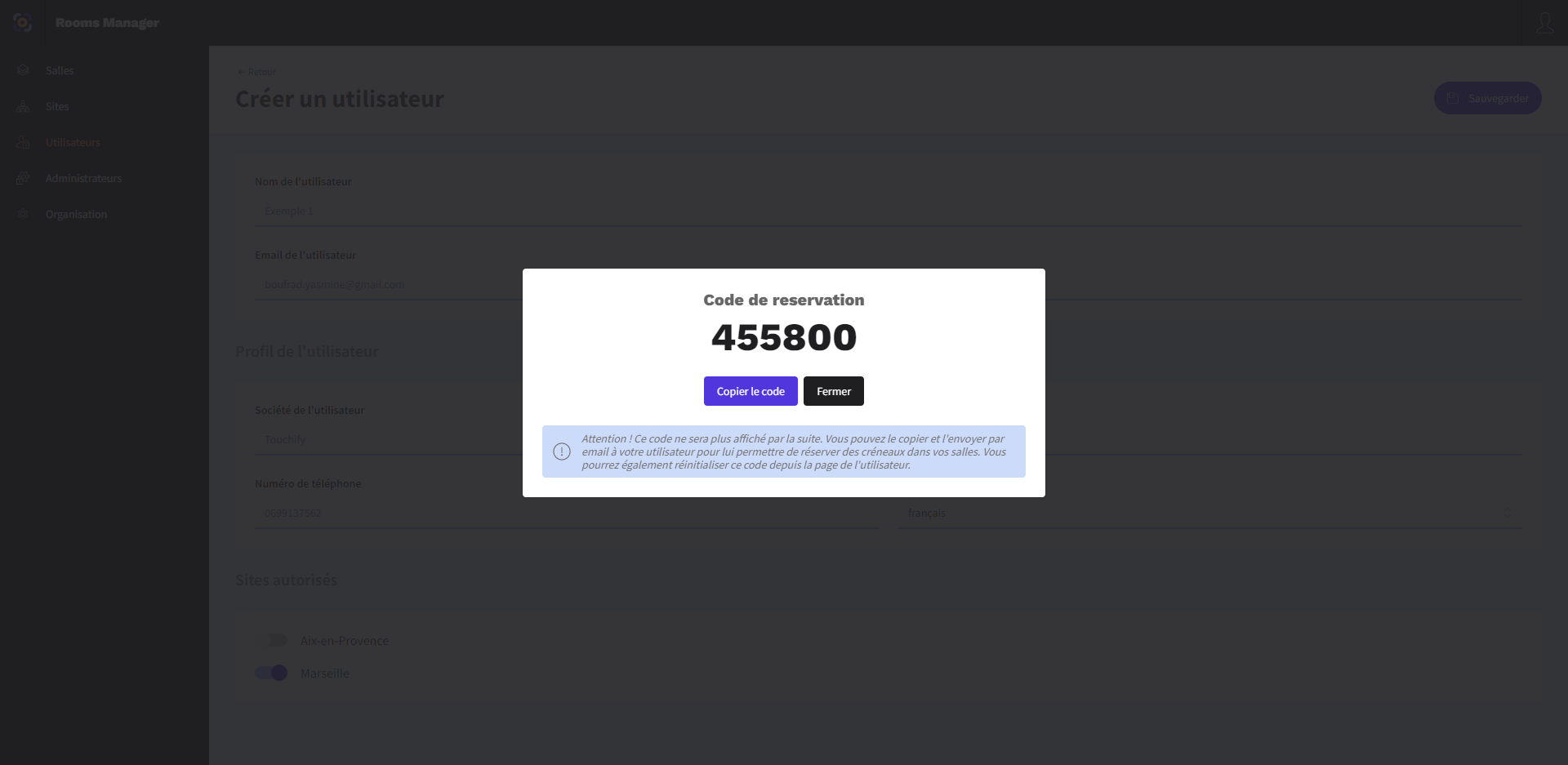
After closing the reservation code window, your new user is created and available in the user list.
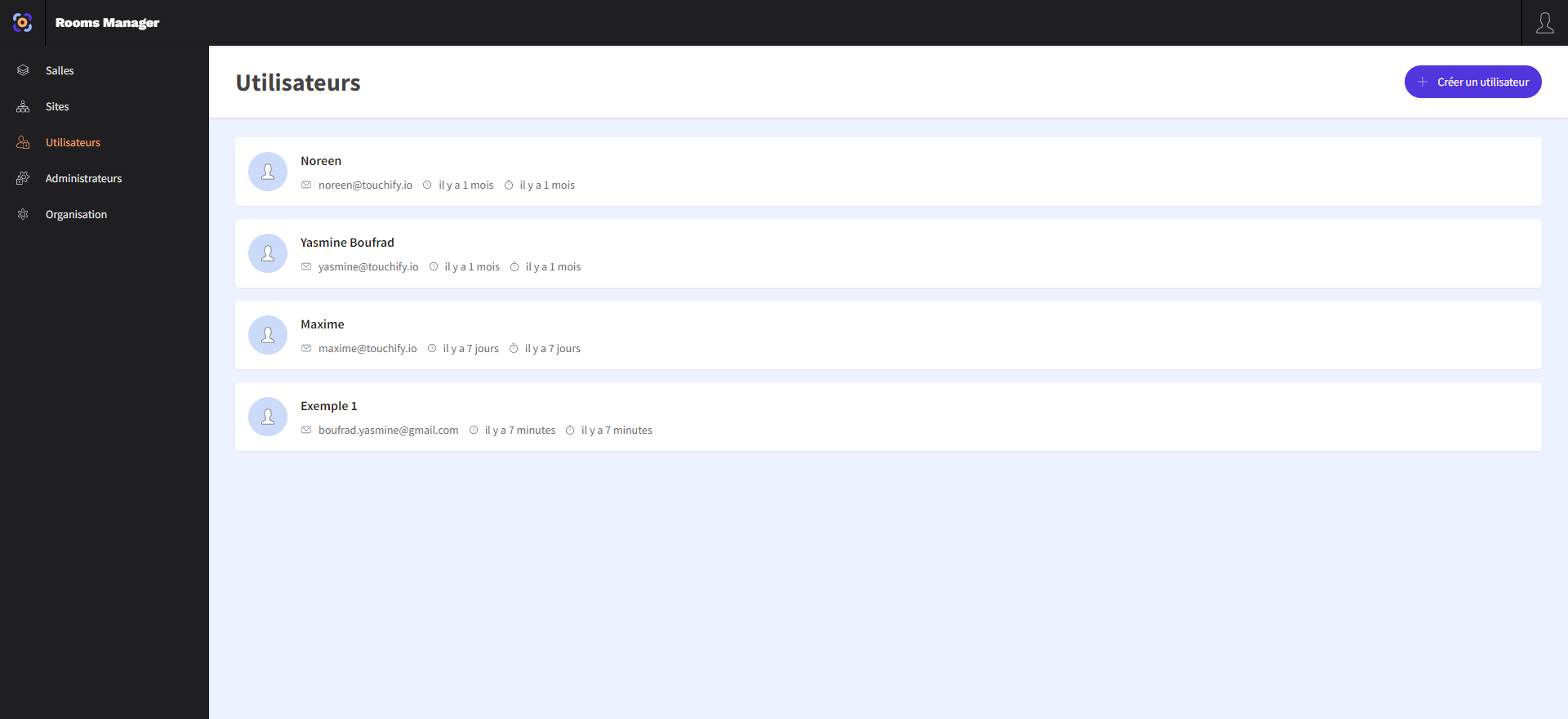
Configure a user
From the user list, you can click on a list item to access its configuration.
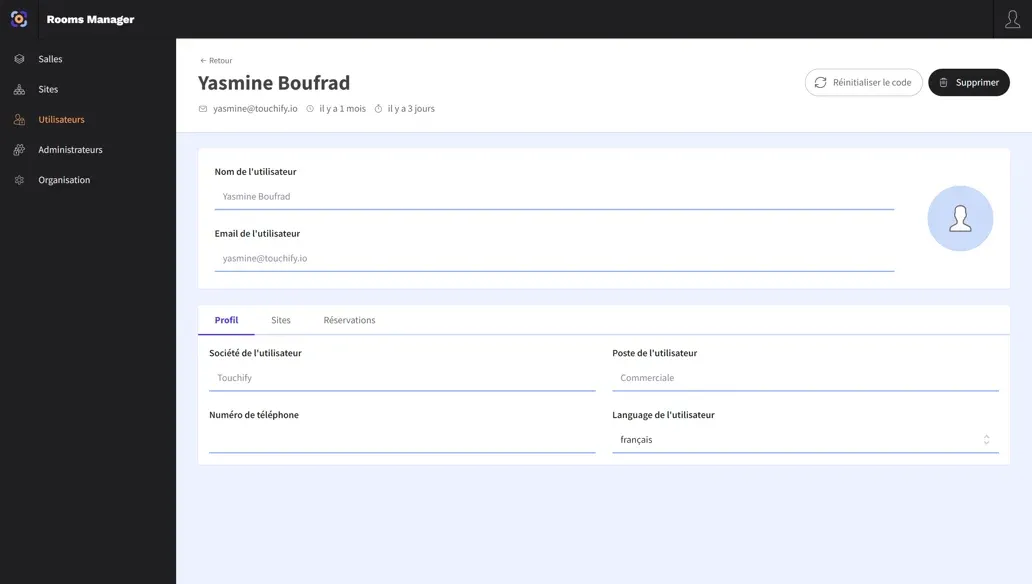
On this page, you can modify the user's name, email or photo. You can also access the rest of their configuration via the tabs:
- Profile: view and modify the user's profile information
- Sites: select the sites in which the user can reserve rooms.
After any modification, remember to click the Save button to apply them.
Reset the reservation code
From the user configuration page, you can reset their reservation code. To do this, click the Reset code button at the top right of the page.