

Meeting room management
Room list
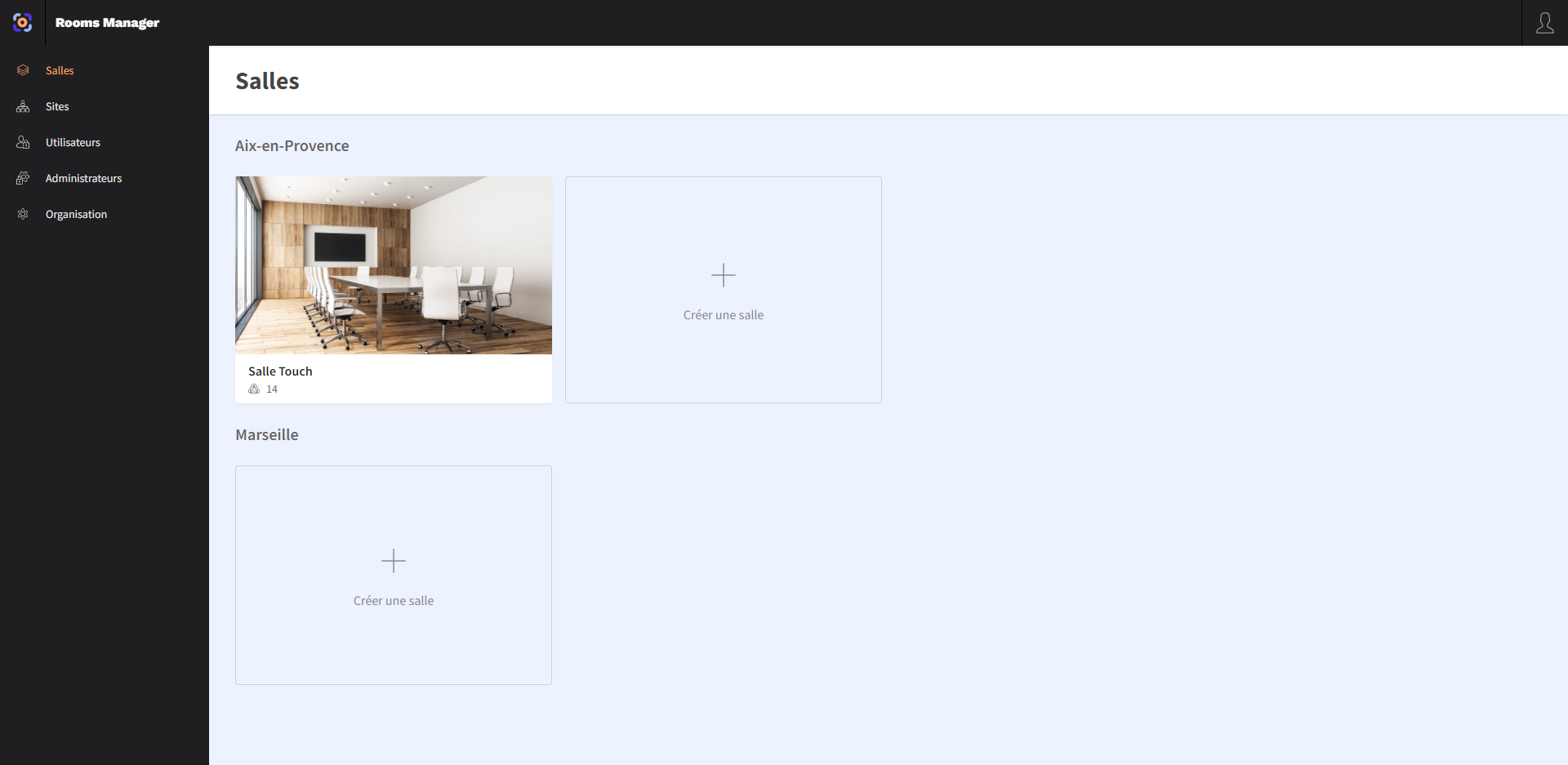
When you are on the Rooms manager administration portal, click on the Rooms section in the left menu to access your meeting room list.
Create a meeting room
To create a meeting room, start by clicking the Create a room button.
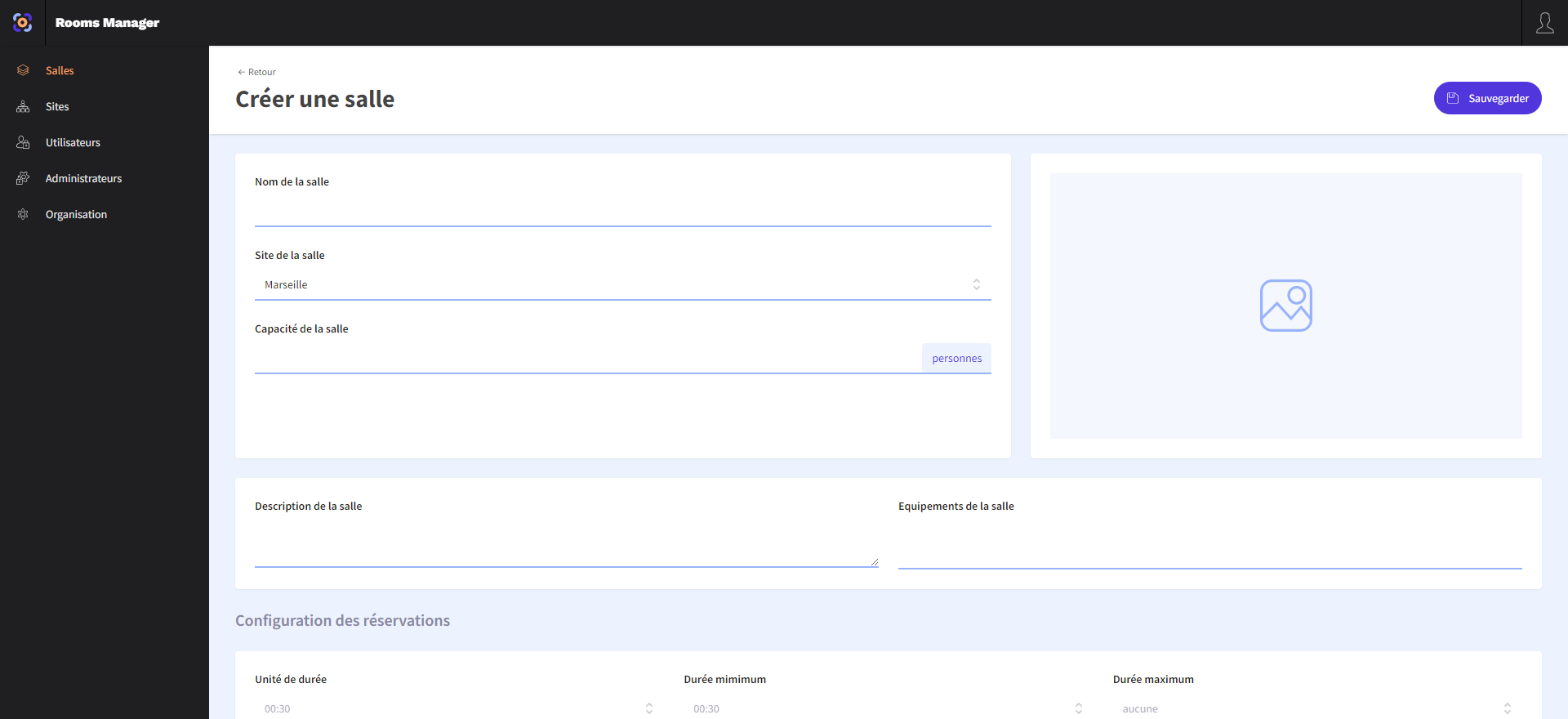
In the creation form, fill in the different information then click the Save button at the top right of the screen.
The mandatory information is:
- Room name: defines the public name of the room for your users.
- Room site: determines the site that hosts the meeting room. (This field is usually pre-filled according to your choice on the previous page).
You can also configure your page's public profile (this information will be visible to users):
- Room capacity: defines the maximum number of people allowed in this room.
- Room description: defines a short description of the room.
- Equipment: determines the list of equipment available in this room (enter the equipment name then click "Enter" or "Tab" to add it to the list).
Providing precise data allows users to get an accurate description of the room they want to reserve.
You can also configure reservation rules for this site:
- Duration unit: determines the duration unit for reservations. For example, if the duration unit is 30 minutes, reservations can be positioned at 10:00, 10:30, 11:00... and can have durations of 30m, 1h, 1h30m, 2h...
- Minimum duration: determines the minimum duration of reservations. By default, this option corresponds to the duration unit.
- Maximum duration: determines the maximum duration of reservations. By default, no maximum is defined.
- Opening hours: determines the days and time slots during which it is possible to reserve slots on this site.
By default, this information is inherited from your organization's configuration.
Configure a meeting room
After finishing creating a meeting room, you are redirected to the room page. (You can also navigate to this page from the room list).

On this page, you can notably upload an image to customize its appearance in the user application. To modify the meeting room image, click on the box on the right of the screen.
The image uploads instantly, your room is customized!
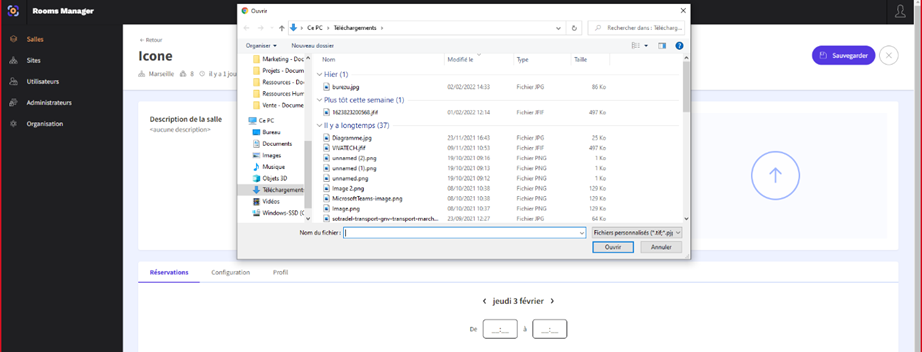
From this page, you can also find all information about your meeting room through the tabs:
- Reservations: View and modify room reservations.
- Configuration: View and modify reservation rules for the room.
- Profile: View and modify the room's name, description, capacity or equipment.
After any modification, remember to click the Save button to apply them.
Your room is created!
It appears in the meeting room list in the Rooms section.