Create Interactive Content
This article covers content creation. To learn how to create the base of your project, read the previous article.
Create a Page
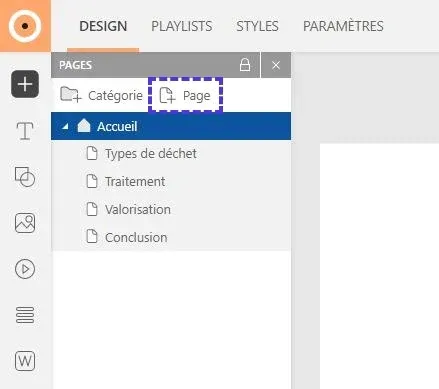
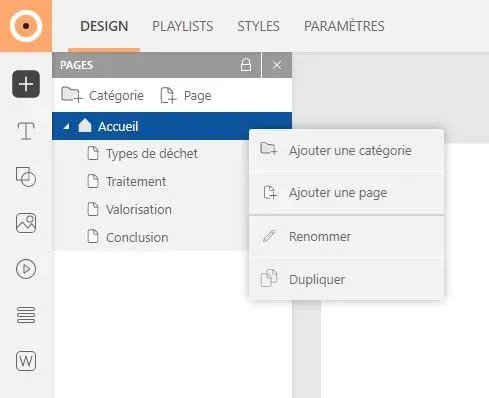
Click on the "Add a page" button in the pages panel, on the left of the interface. Still in the panel, rename this page by double-clicking on it or by performing right click > "Rename".
To modify the position of a page in the tree structure, hold down a left click and drag the page to the desired location. A blue highlight will indicate where your page will be dropped.

To create a category, click on the "Create a category" button. This function allows you to classify your pages according to a folder logic.
Add an Element
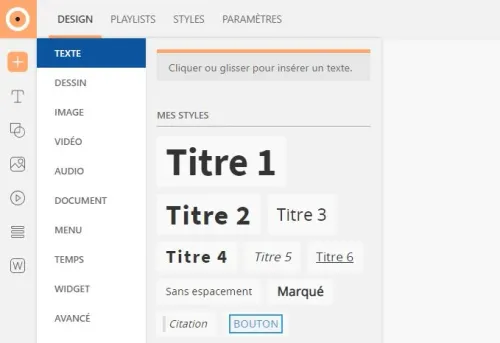
Text: select the "Text" button in the insertion menu, on the left of the interface. Choose one of the predefined styles or click in the work area to create a neutral text block.
Shape: select the "Shape" button in the insertion menu, then choose a shape from the proposed list.
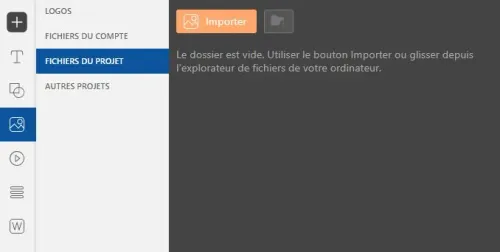
Image: select the "Image" button in the insertion menu, then click on the image you want to add.
Customize the Element
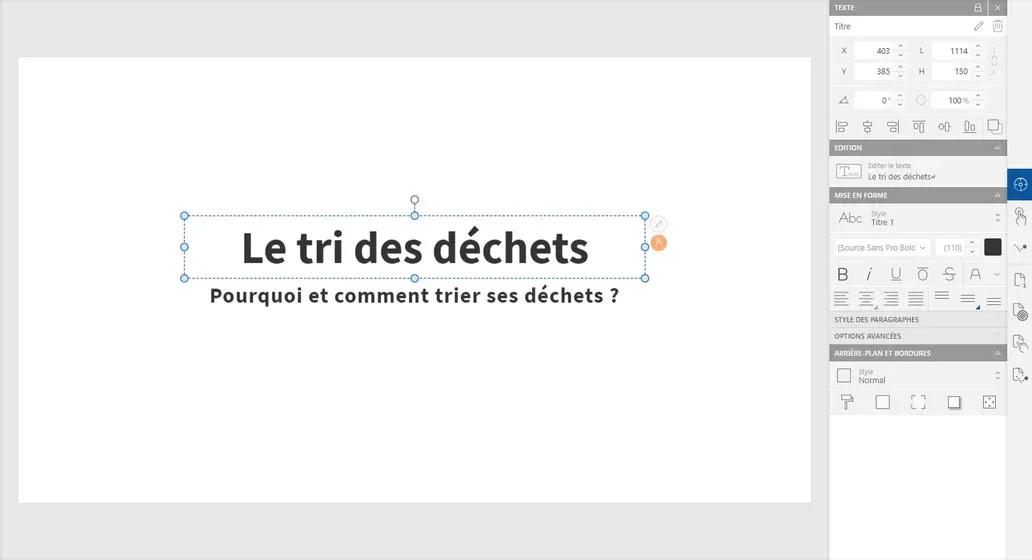
The right panel is entirely dedicated to customization. You will find there color, size, position or typographic treatment options for texts.
Click on the element so that the panel displays its options.
Modify the Element
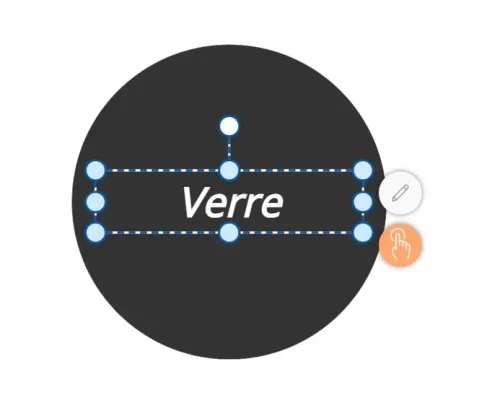
Click on this new block and use the white dots to modify the size of the element.
Click on the "Edit" button (pencil icon) to change the content of the block.
Click on the orange "Interaction" button to add an interaction to the element.
Add Interactions
Each element can become interactive.
Choose an element then click on the orange "Interaction" button, or on the identical button in the right sidebar. Click on the "Apply an interaction" button to unfold the options list and select the interaction type of your choice.
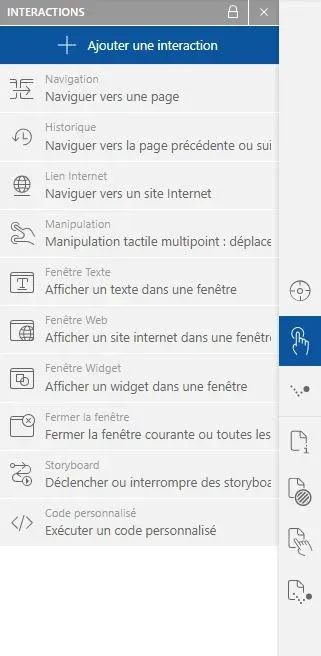
The modification or deletion of this interaction will be done in the same window.
Note that it is possible to apply several different interactions on the same element (navigation, window, manipulation...) and to choose the trigger for each of them.
Preview
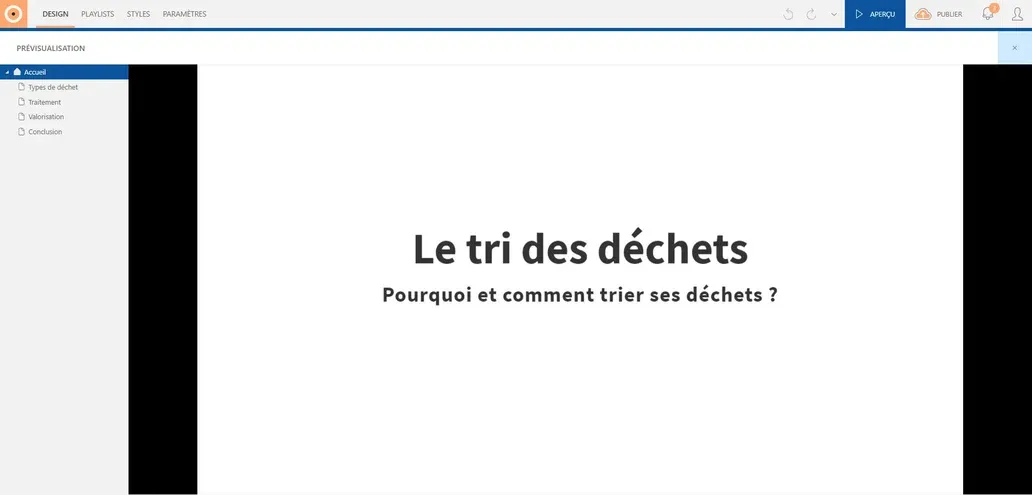
Click on the "Preview" button to launch the preview. You will be able to test your project, its interactions, its ergonomics, and visualize the transitions or animations applied to your elements.
To exit preview mode, click on the cross at the top left of the console.