Texts
Insert Text

First, click on the "Insert text" button (T icon) in the insertion menu, on the left of the interface. A window offering different text styles will open.
Method 1: click
Click on the text style you want to add: a new block will appear at the top left of your page. "Text" will be written there as a marker.
Method 2: draw

Hold down the left click and draw your block anywhere on the page. Type your text as soon as the box appears: any empty text block is deleted once deselected.
Method 3: drag & drop

Drag and drop the style of your choice into your page: a new block will appear where you release the click. "Text" will be written there as a marker.
Customize Text
To format your text, select the element to display the "Element customization" options (crosshair icon) from the right sidebar. The editing panel will show the customization options.
Editing and Formatting
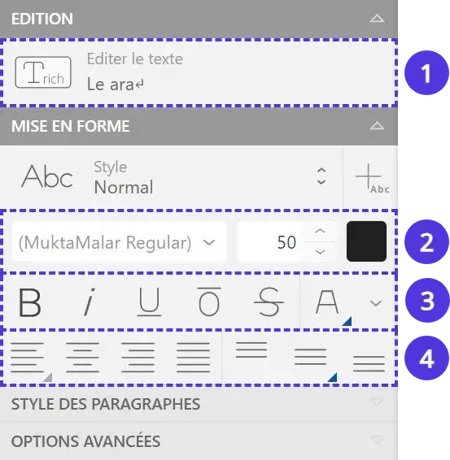
- Edit the text in the Edit panel (or by double-clicking on the text block)
- Modify the typography, size and color of the characters
- Apply bold, italic, underline, highlight...
- Master the justification of your text
You can also import your fonts in the "My Brand" section of your profile.
Editing panels or block editing? What's the difference?
There are two ways to customize your text.
Via the editing panel: this method, mentioned above, allows you to modify a text element as a whole. All characters in the selected block will be modified.
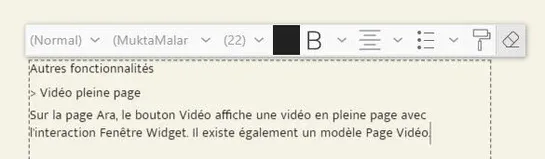
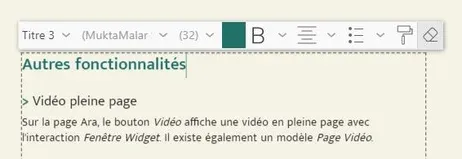
Via block editing: when you edit the content of your text element, a customization banner appears. It does not affect the entire block but only the characters you have selected. This method allows, for example, to apply a color and boldness to important words.
Advanced Options
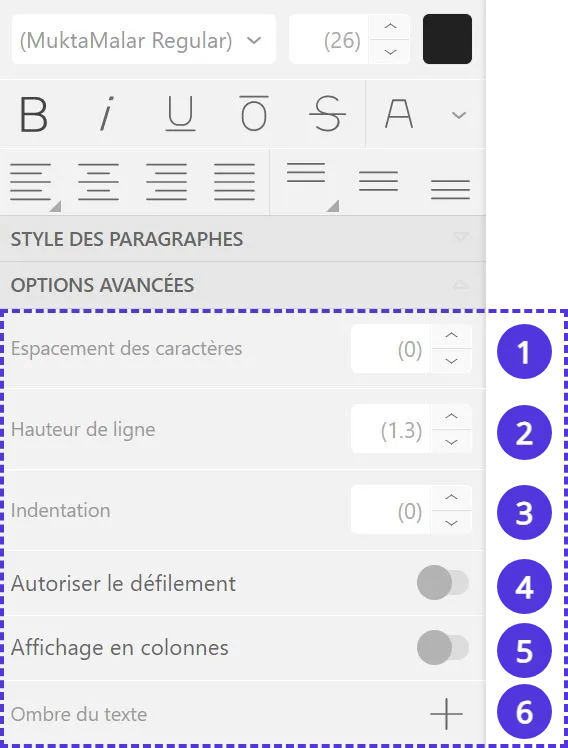
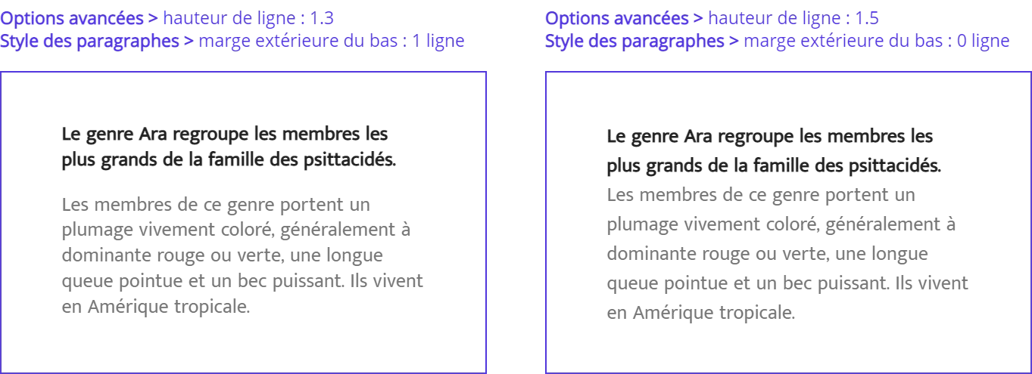
Modify more advanced settings in the "Advanced Options" subsection of the "Formatting" panel:
- Modify the space between letters to aerate or condense the paragraph
- Control the space between lines
- Apply an indent-type offset at the beginning of the paragraph
- If your text overflows the block, allow the user to scroll the text
- Separate the same text element into multiple columns
- Mark characters with a drop shadow
Paragraph Style
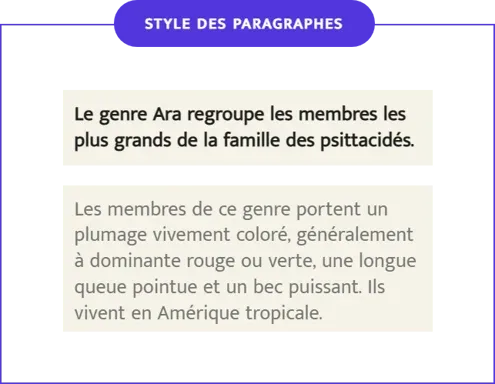
This subsection contains paragraph settings: they are complementary to text formatting while being autonomous. For example, you can modify the space between paragraphs independently of the space between lines.
Several tools are available to customize your paragraphs:
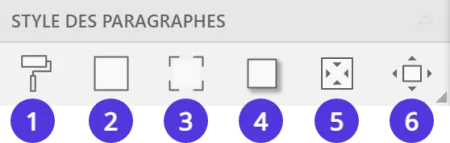
- Choose a background color
- Apply an outline
- Round the corners of the paragraph area
- Add a drop shadow
- Set an internal margin
- Manage external margins
Background and Borders
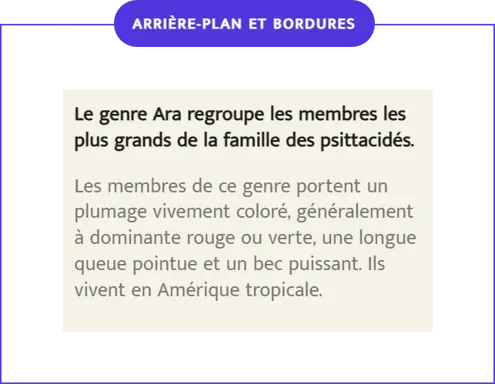
Beyond textual content, the block itself is customizable. The "Background and borders" panel contains different options.
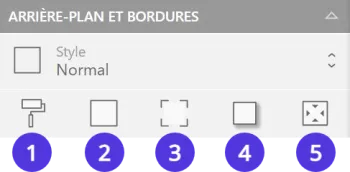
- Apply a background color
- Add an outline on the border(s) of your choice
- Round the corner(s) of your choice
- Generate a drop shadow
- Set an internal margin
Styles
To facilitate the customization of your texts, use the Styles functionality: save your customization and apply it with one click on your new elements.
Apply a Style
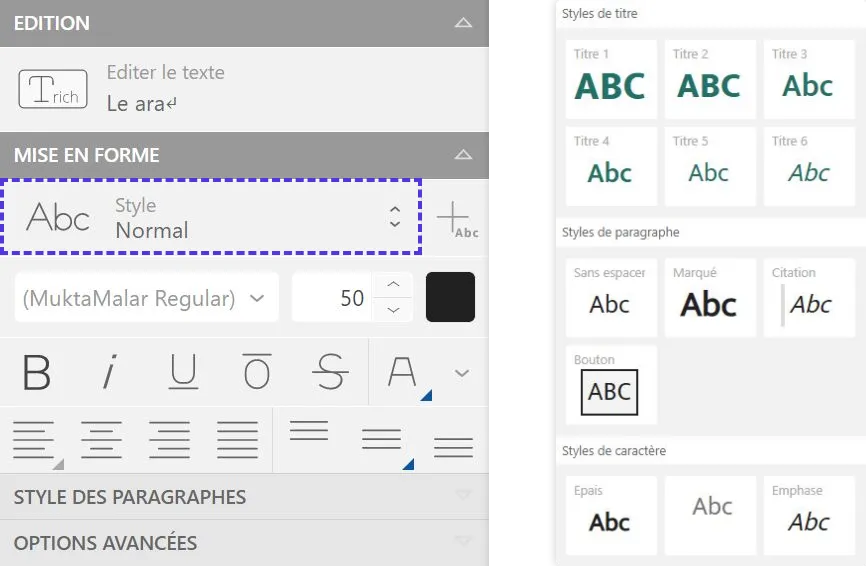
In the "Formatting" panel, click on the "Style" button: choose a text style from the proposed list. Your element will adopt the formatting of the selected style.
Save a Style
You have just customized a text and want to keep this style in memory.
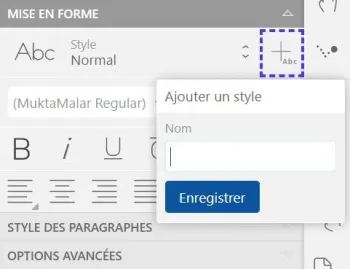
Click on the "Add a style" button to the right of the "Style" dropdown button and note the name you want to assign to this new style. It will automatically apply to your selected element.
Go Further
You have modified an element and want to save these modifications in the applied style.
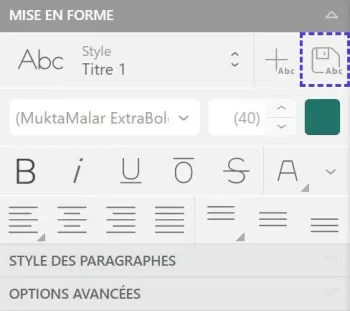
Select the element, then click on the "Save" button next to the "Style" dropdown button. The modifications will be automatically taken into account by all other elements bearing this style.
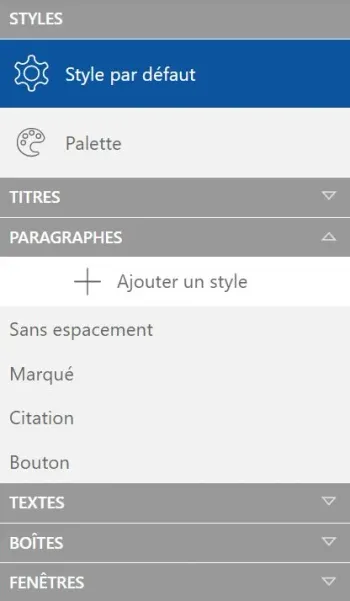
You can also modify your styles from the "Style" tab, in the Studio's top menu.

Customize all your texts by modifying the Default Style: it defines the parameters of texts that do not have a style applied. It also serves as a base for all other styles.
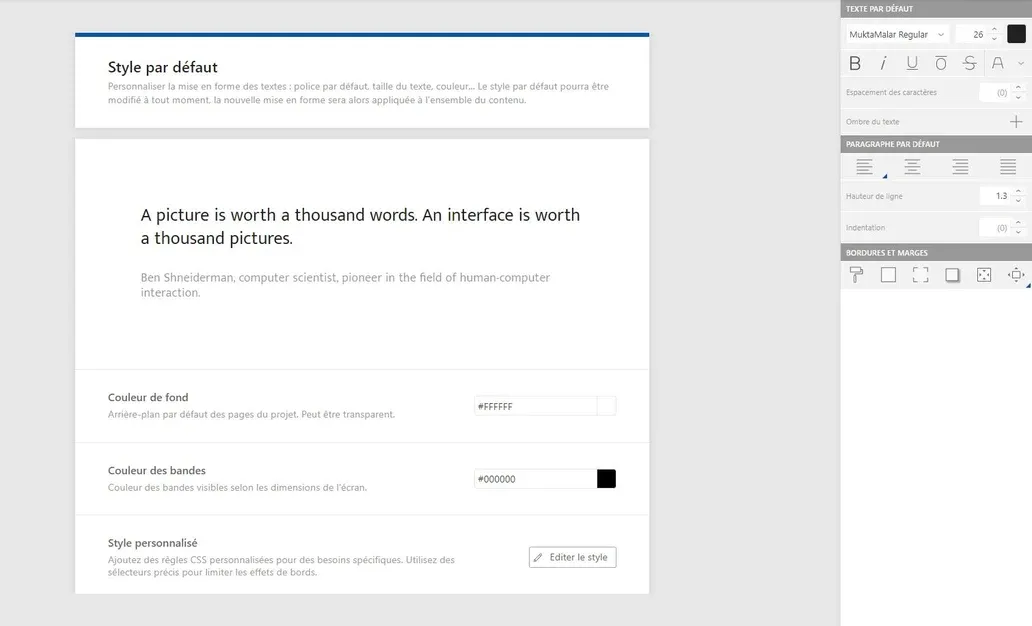
Styles are classified by categories. Look for the category of the style you want to modify in the left panel, then select it to customize it at the root.
The modifications will be taken into account by all other elements bearing this style.