

Animations
Customize an animation
Learn how to adjust your animation settings.
Prerequisites: apply an animation to your element or page. To learn more, see introduction to animations
Timing
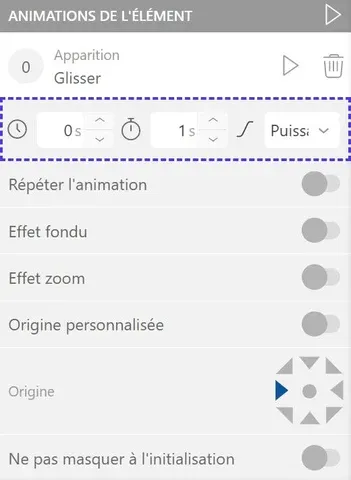

Define the appearance time (clock icon) and the duration of your animation (stopwatch icon). Modify the speed curve to adjust your element's movement.

Warning: you can apply multiple animations to the same element, but conflicts may appear if animations trigger at the same time.
Offset their timer(clock icon) to avoid display bugs.
Effects
Zoom and fade
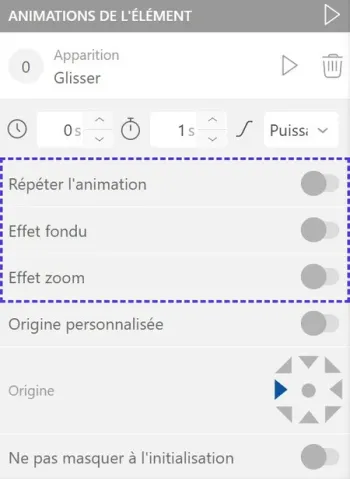

Refine your animation appearance by activating zoom and/or fade effects: they will complement the animation style without modifying other parameters.
Repeat animation
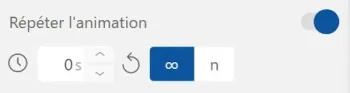
Apply a repetition effect: control the number of repeats and the duration between each repetition.
Special options
Some options are specific to an animation. The parameters are then specified in the window. Modify them according to your needs.

Initialization
By default, an element is invisible before its appearance animation is triggered.
To cancel this behavior, click the "Do not hide on initialization" option switch.