

Create Digital Signage content
This article covers content creation. To learn how to create the base of your project, read the previous article.
Activation
If, when creating your project, you chose the Digital Signage type, your presentation will automatically open on the Playlist tab.
If, when creating your project, you chose the Interactive Display type, your presentation will automatically open on the Design tab. The Playlist tab is right next to it, in the Studio's top menu.

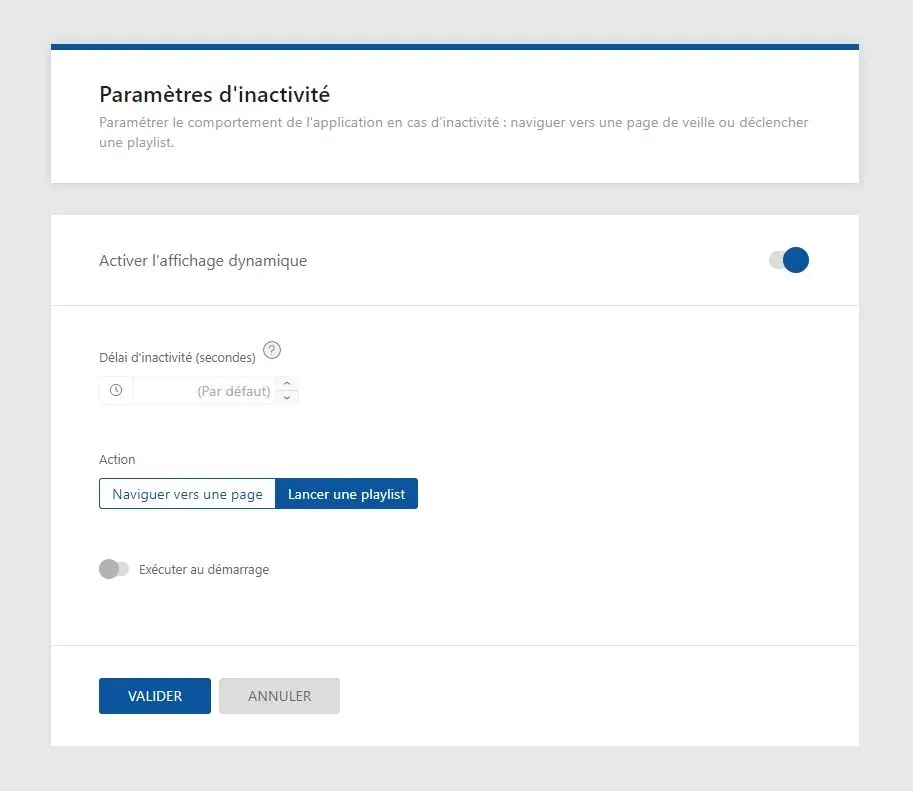
Select this tab: an activation panel will be presented to you, in order to adjust the general settings of your display. Choose the inactivity delay, the action launched at the end of it as well as the options related to your previous choices, then click on the "Validate" button.
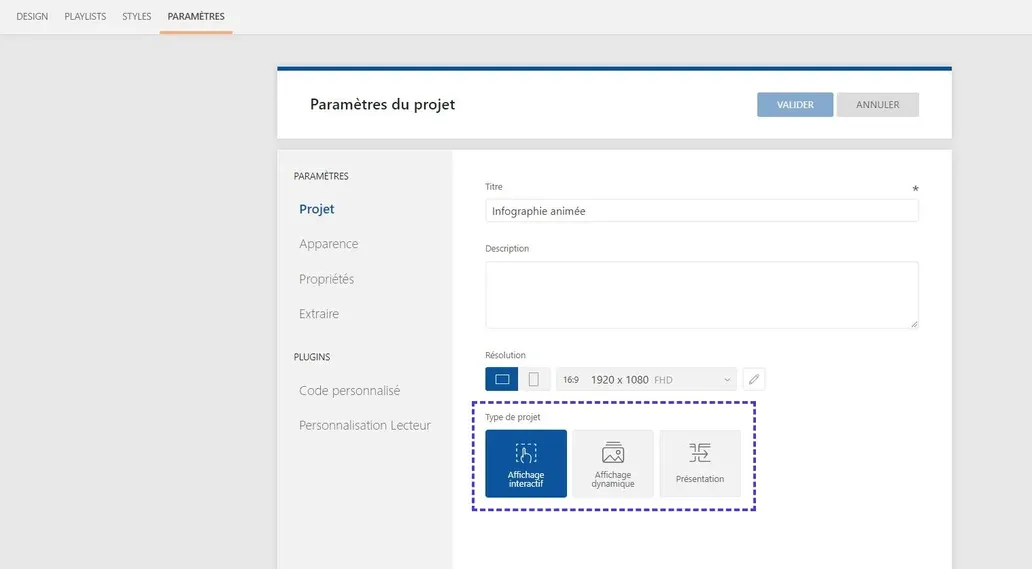
If you want to change your project type to optimize it, click on the Settings > Project tab then select the type of your choice.
Create a Playlist
An empty playlist is created by default. You can use it directly or create a new one.
To create a new playlist, click on the "Playlist" button at the top of the left sidebar. In the new Playlist panel, press the "Add a playlist" button.
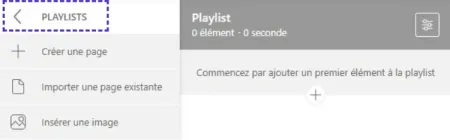
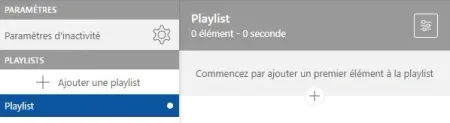
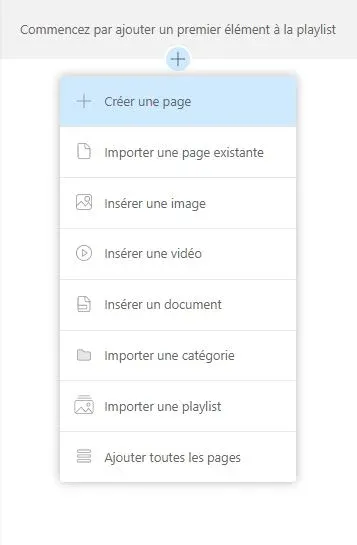
Once your playlist is created, select in the left menu the type of content you want to add to it: image, video, document, page...
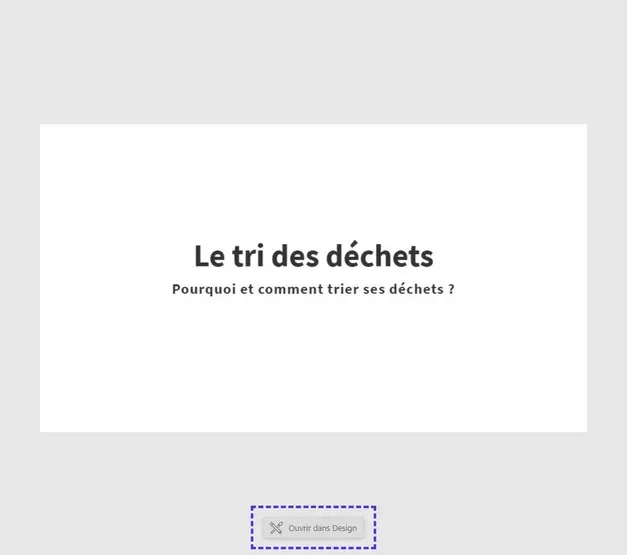
If you integrate a page, you can modify it in the Design tab. An "Open in Design" button is provided for this purpose, at the bottom of the work area.
Configuration
Customize the display settings in the right panel: duration, destination page in case of interaction, transitions...
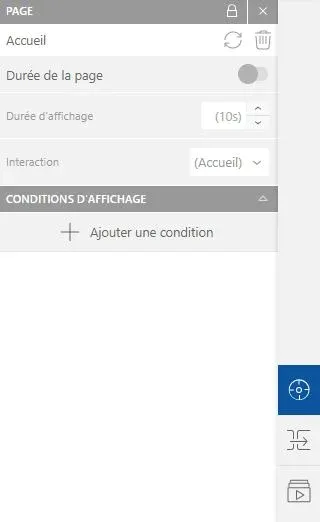
The right sidebar allows access to three different sections:
- The Element Options section, to modify the selected playlist element
- The Element Transition section, to adjust transition animations
- The Playlist Options section, allowing you to customize the previous settings globally