Storyboards
Create a storyboard
Method 1: via the footer
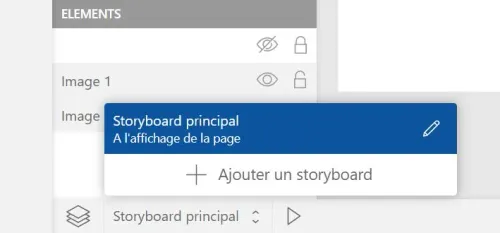
Click on the "Storyboard" dropdown menu at the bottom left of the interface, in the footer.
Select the "Add storyboard" button: the parameters of this new storyboard will display, complete them then click the "Back" button (arrow) to validate.
Method 2: via the element
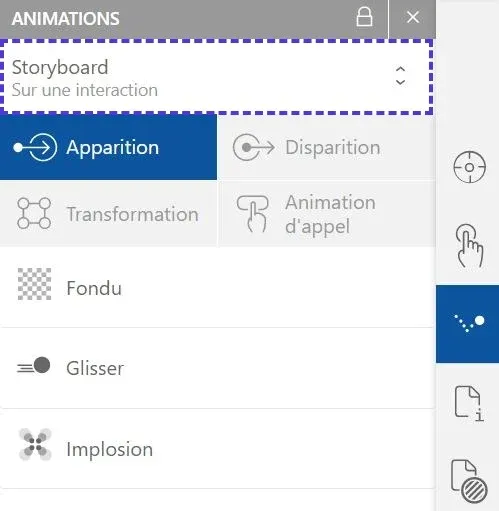
Select your element and go to the "Animations" panel. Click on the "Storyboard" dropdown menu at the top of the window.
Select the "Add storyboard" button: the parameters of this new storyboard will display, complete them then click the "Back" button (arrow) to validate.
Modify a storyboard
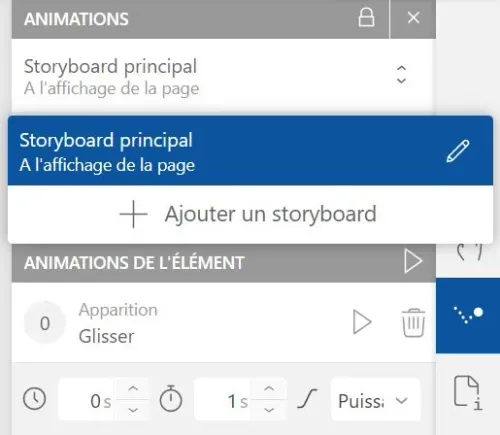
Select the "Storyboard" dropdown button (in the footer or in the animations panel) then click the "Edit" button (pencil icon) of the storyboard you want to modify.
Execution
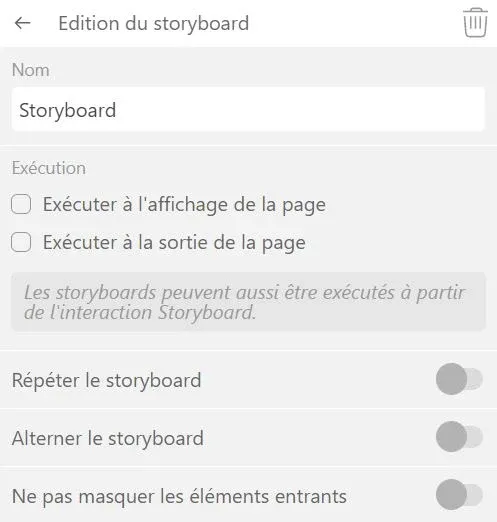
Choose to launch the storyboard on page display or page disappearance. This option is useful when you dedicate your storyboard to entrance animations or exit animations.
Repeat & alternate
To repeat your storyboard, click the "Repeat storyboard" option switch: choose the number and frequency of repetitions.
To alternate your storyboard, click the "Alternate storyboard" option switch: at the end of its cycle, the storyboard will be rewound then replayed like a boomerang.
Incoming elements
By default, an element is invisible before its appearance animation is triggered. To cancel this behavior, click the "Don't hide incoming elements" option switch.
Choose a storyboard
Each element animation is applied to a storyboard.
Select your element then click the "Animations" button to go to the element animations panel. Select the storyboard of your choice in the "Storyboard" dropdown menu: the next animation you add to your element will be affiliated with this storyboard. Animations already created in this storyboard will also be visible in the "Element Animations" panel.