

Book a Room from the Mobile App
Book a Room
Access on the Phone
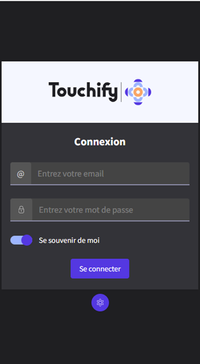
You can book a meeting room remotely from your mobile phone. Simply log in to the Rooms Manager app with your credentials.
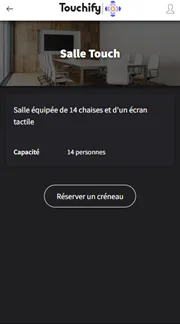
Choosing the Meeting Room
Once logged in, choose your room (in our example, the Touch room) by clicking "book a slot."
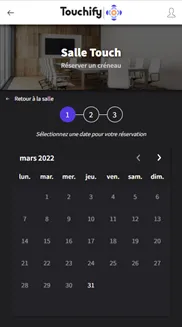
Choosing the Date and Time
Select the desired date on the calendar and click it. You can also choose the month by clicking the arrow at the top right.
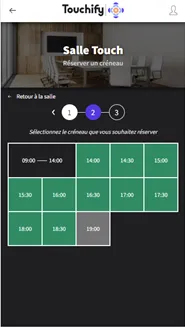
Next is the second step: choosing the time slot. The times shown in green are available. Click your preferred time and the duration of your meeting.
The third step displays the date and time of your booking. Click "confirm my booking" (green button).
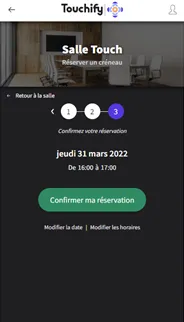
Booking Confirmation
Your booking is processed and communicated to all devices.
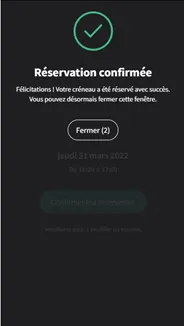
Cancel a Booking
Entry Portal
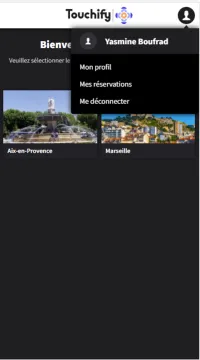
When you log in to the Rooms Manager app, you arrive at the entry portal with the booking sites you have access to (in our example, it's the Touchify company with its 2 sites).

Cancel My Booking
To cancel your booking, click the "my account" icon at the top right, then click "my bookings."
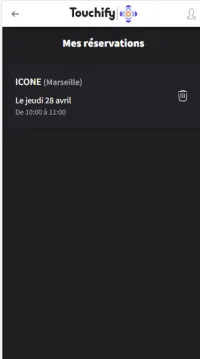
Your bookings appear and you can cancel the one you want (in our example, it's the ICONE Marseille booking). Click the "trash" icon on the right.
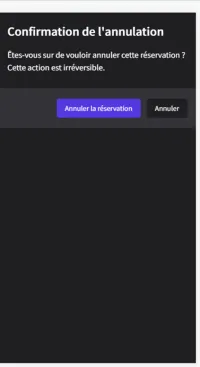
A window appears asking you to confirm the cancellation of your booking. Click the purple "cancel booking" button.
Done! The slot you booked no longer appears in "my bookings."