

Rooms Manager
Book a Room from the Tablet
In this article, learn how to book a room from the tablet located in front of the room in Rooms Manager.
Accessing the Tablet
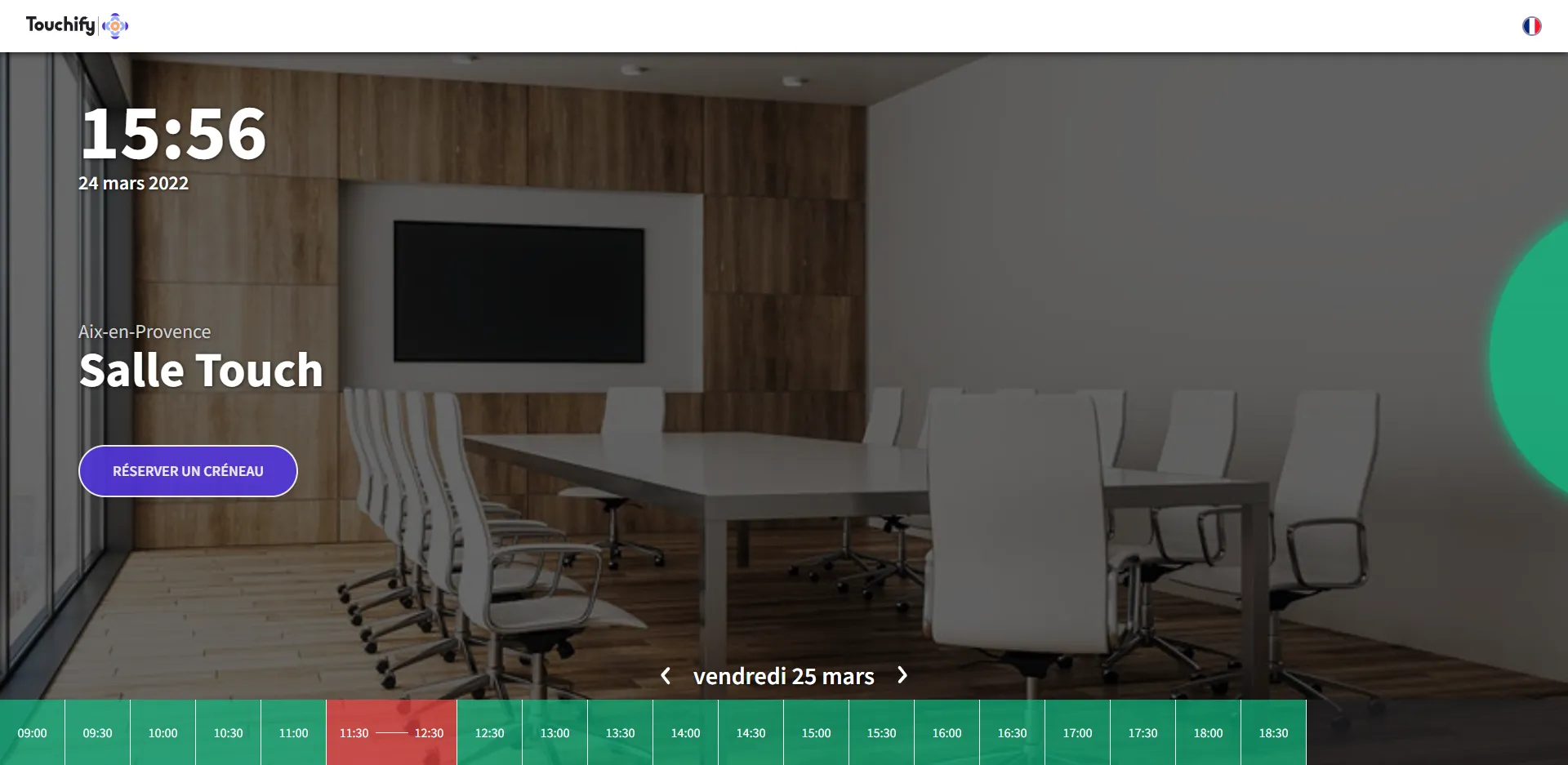
When you access the room booking tablet, you choose the room you want to book and then select the time slot that suits you (in our example, it will be the Touch room).
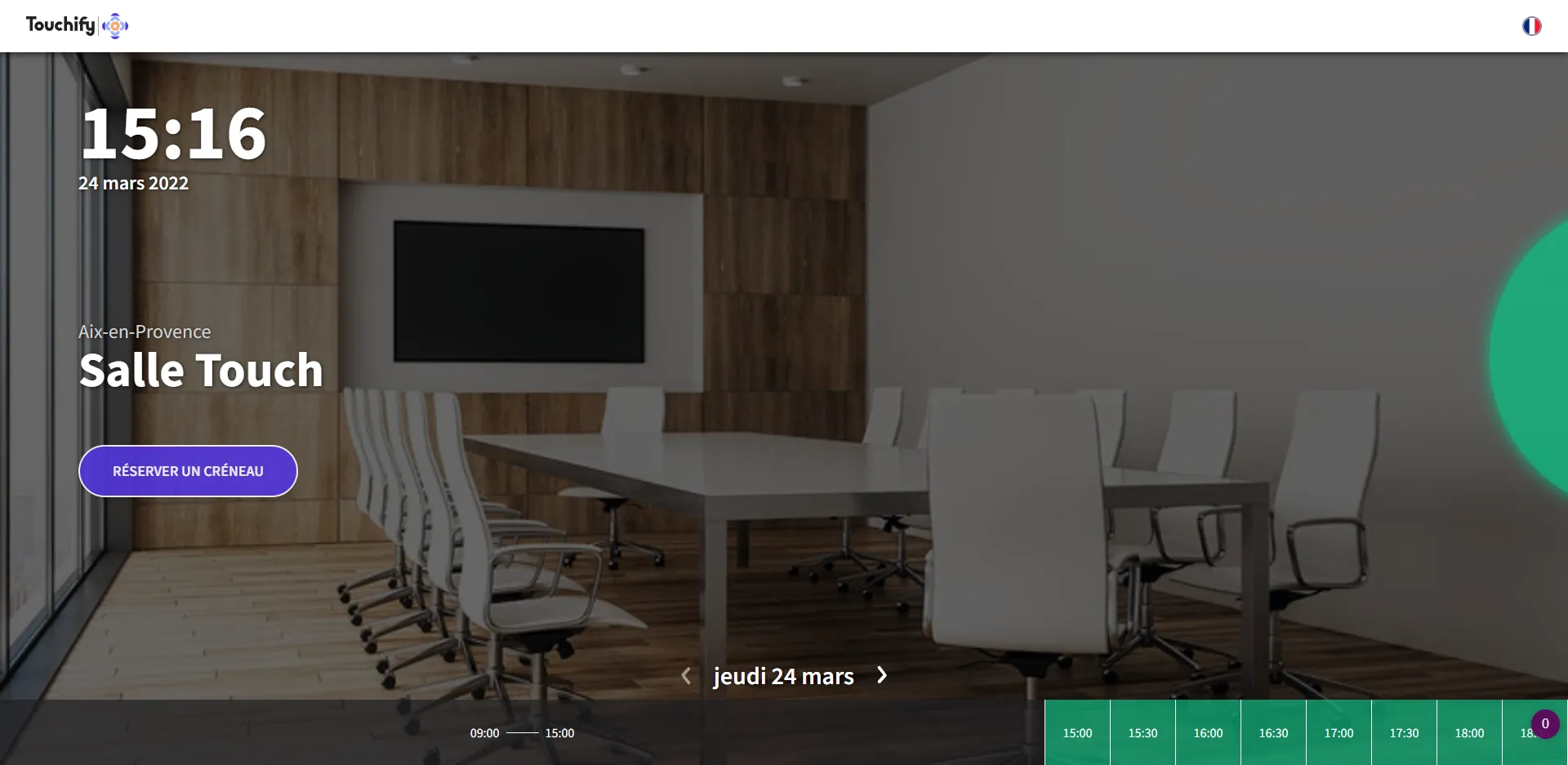
Note: The example above shows a meeting room. You can choose from several meeting rooms.
Choosing a Time Slot
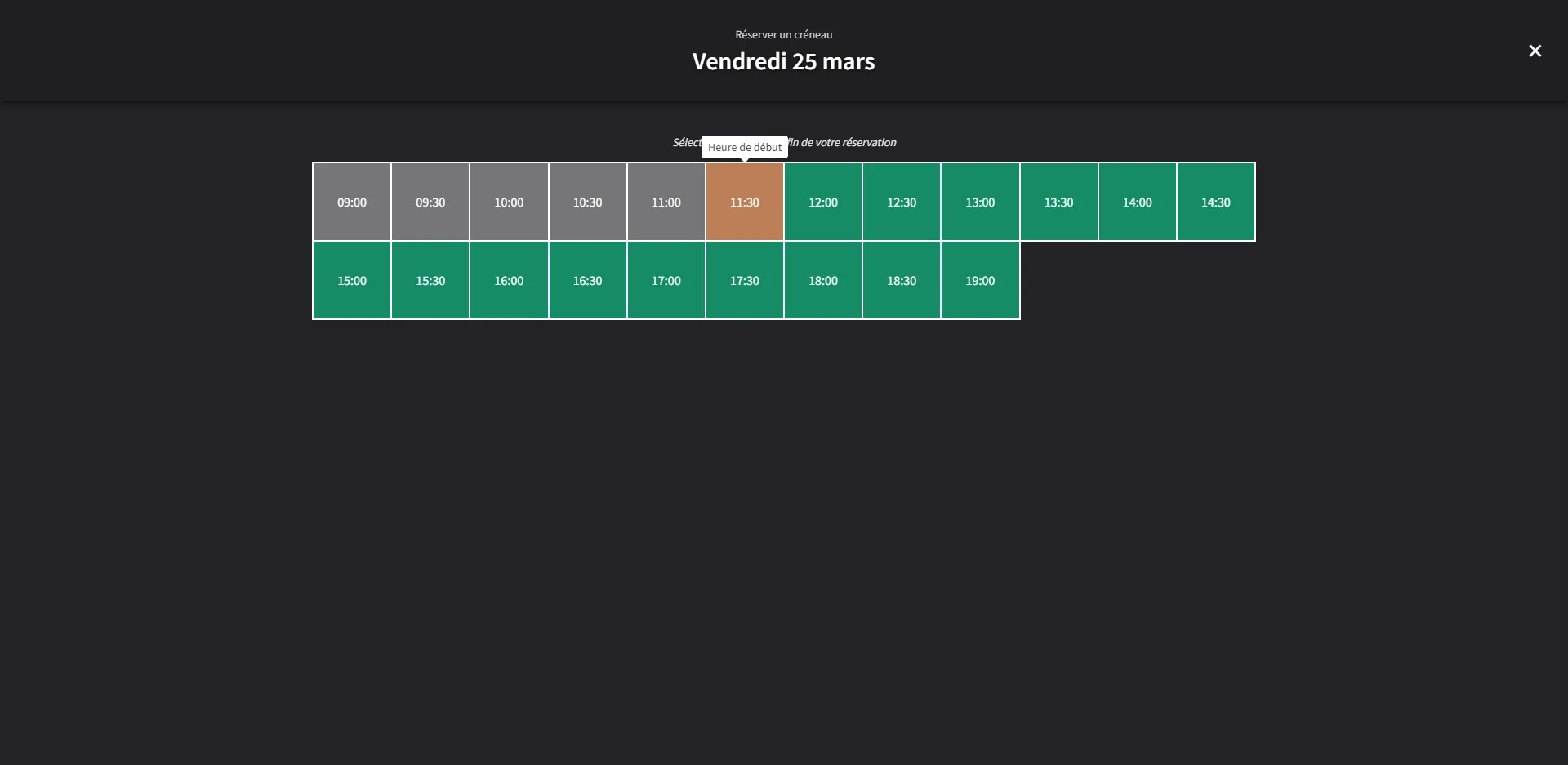
You can either tap the purple "Book a slot" button or select the date and slot directly at the bottom of the screen. The orange color indicates the start time of the meeting you are about to schedule.
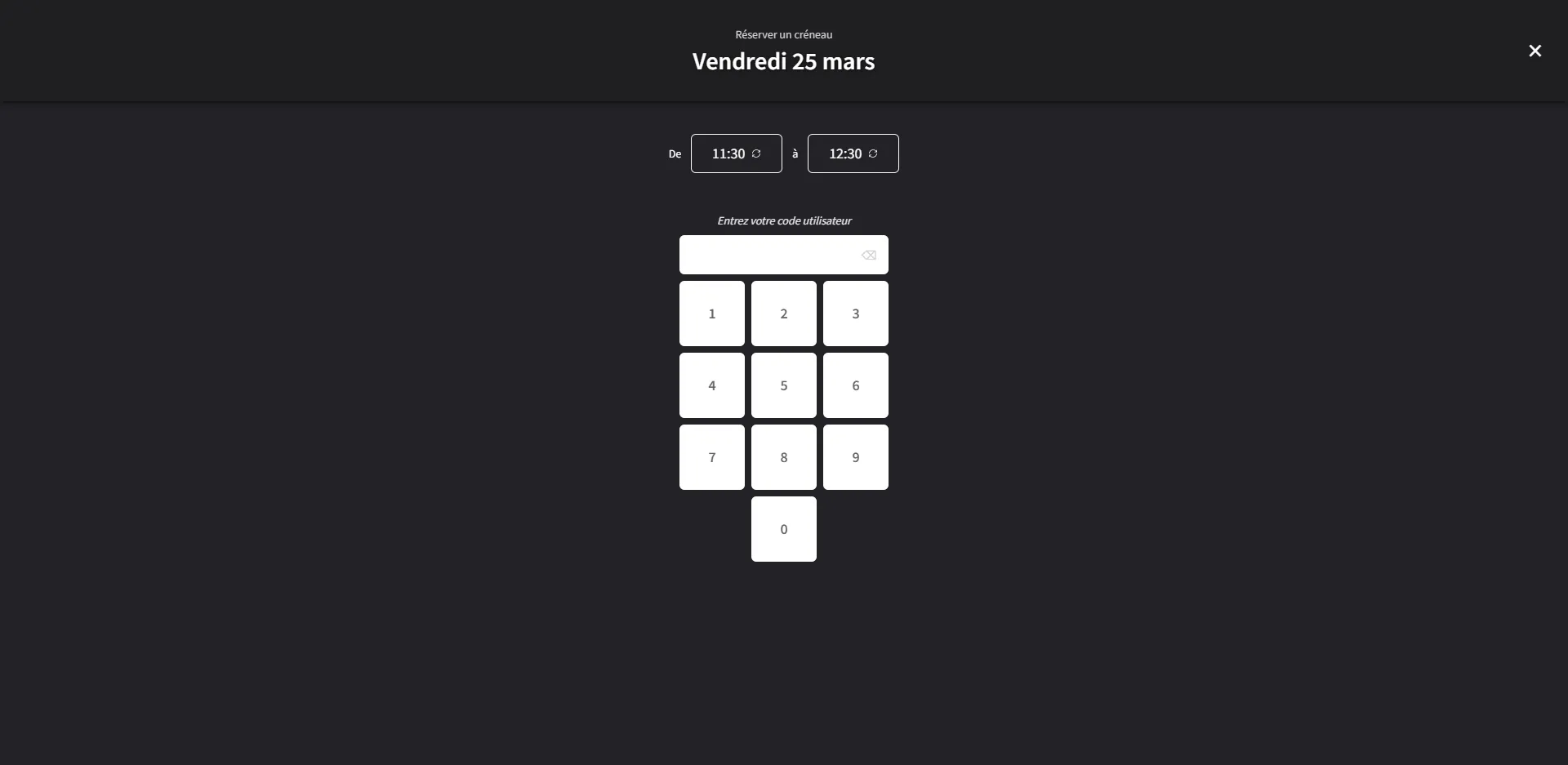
To complete your booking, you must enter your user code. This code consists of six digits.
Booking Confirmation
Your booking is immediately taken into account and communicated to all connected tablets.
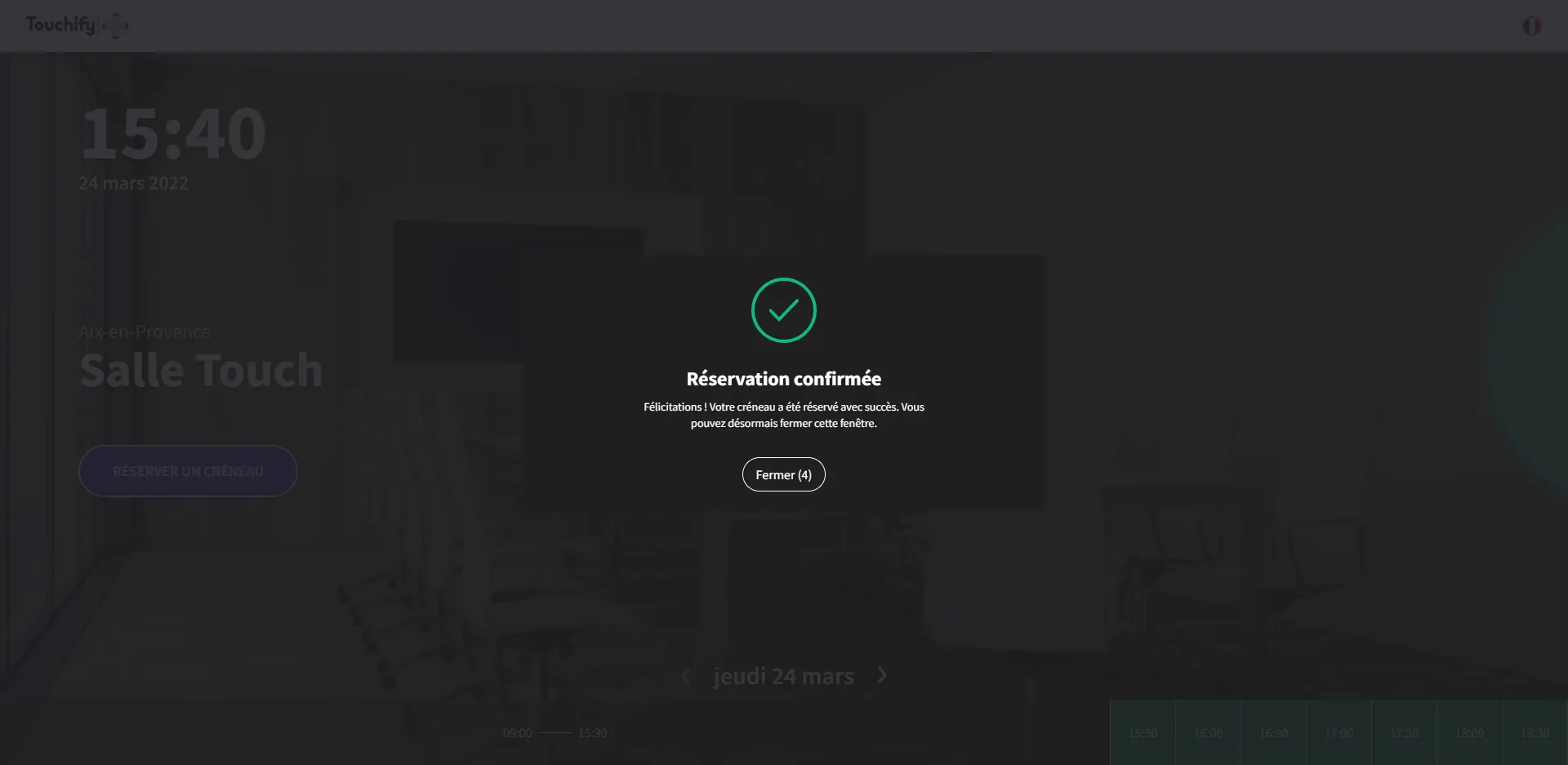
When you check the booking schedule for your room, your booking appears in "red," indicating that this slot is now assigned. The meeting room will no longer be available at this time.
You can also cancel your booking from the tablet by tapping the slot and then entering your booking code.