

Connect
User Profile
Content Creator: You use Touchify Studio to create your own presentations or to administer your organization's content broadcast on your digital fleet. In which case, you can connect to the application with your user account.
Reader Only
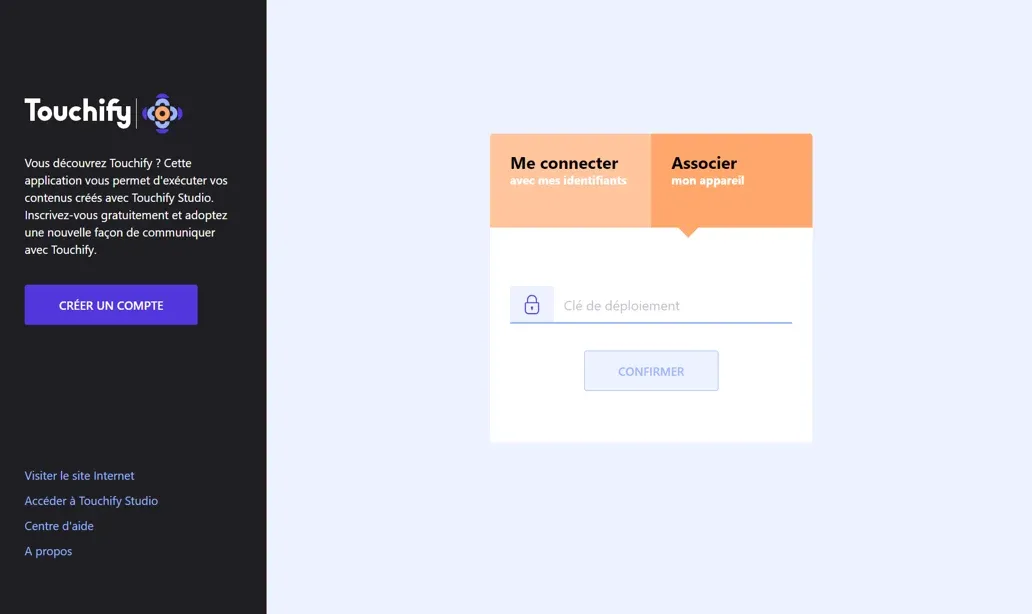
You want to connect a computer and administer it with Touchify Publisher. In this case, you can create broadcast groups to associate your screens using a deployment key.
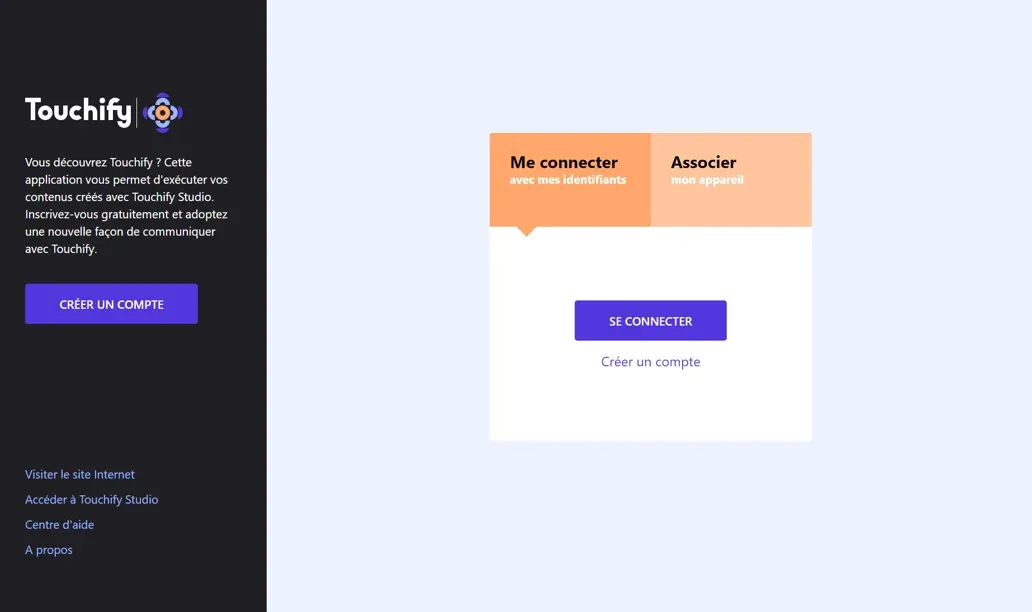
Connect with a User Account
Use your credentials to connect to your user account and access your published projects.
Associate a Screen to a Broadcast Group
Use the deployment key to associate the computer to one or more broadcast groups and control it from Touchify Publisher.
To learn more, consult the article Introduction to Touchify Publisher.
Common Error Cases
Device not connected to Internet The device must be connected to the Internet to authenticate. The URLs for accessing the Touchify platform must be accessible. If necessary, the company's proxy or firewall must explicitly authorize the following domains: *.touchify.app, *.touchify.io and *.blob.core.windows.net
The Touchify Player application supports Automatic Proxy Configurations (PAC file).
Contact Us- Unknown key: This is usually a deleted group or an input error.
- Expired key: The deployment key was created for a custom and time-limited deployment. The key has expired but it can be renewed if the deployment is still valid.
- Full deployment: The maximum number of devices has been reached for this deployment key. You can increase the number of authorized screens, delete unused screens or acquire new licenses.
- Device already associated: The device is already associated with your organization but may have been disconnected for various reasons. Please delete the screen from Publisher and repeat the operation.