

iOS and iPadOS Installation Guide
Install the application
Use Safari on your iPhone or iPad to access the URL: https://player.touchify.io
Open the browser settings and select Add to Home Screen.
Screenshots
That's it, the Touchify Player application is installed on your device and accessible from the home screen.
Connect
The Touchify Player application offers 2 authentication modes.
Sign in with a user account
Use your credentials to sign in to your user account and access your published projects.
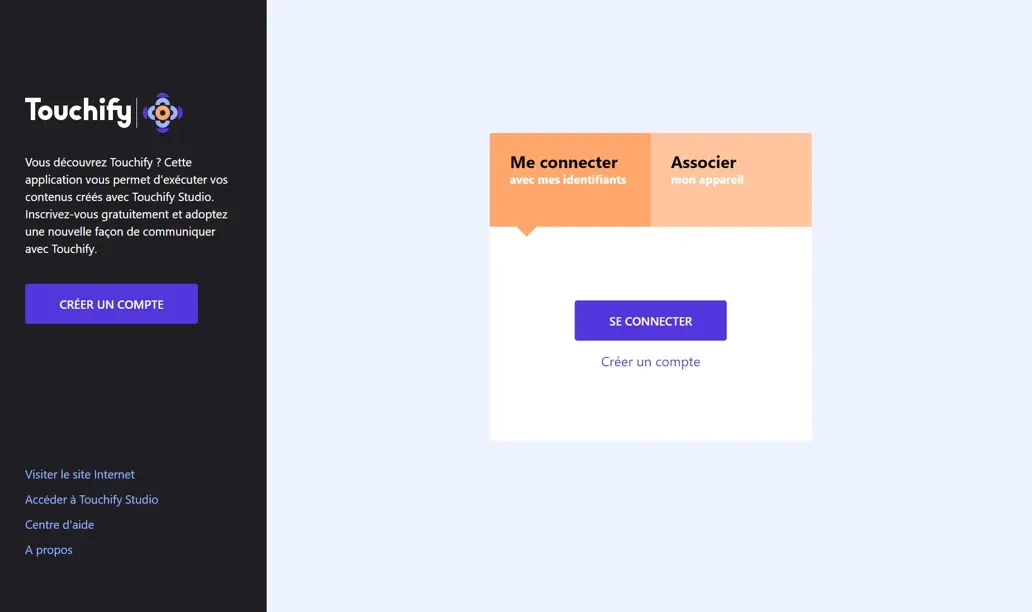
Associate a screen with a broadcast group
Use a deployment key to associate the device with one or more broadcast groups and control it from Touchify Publisher.
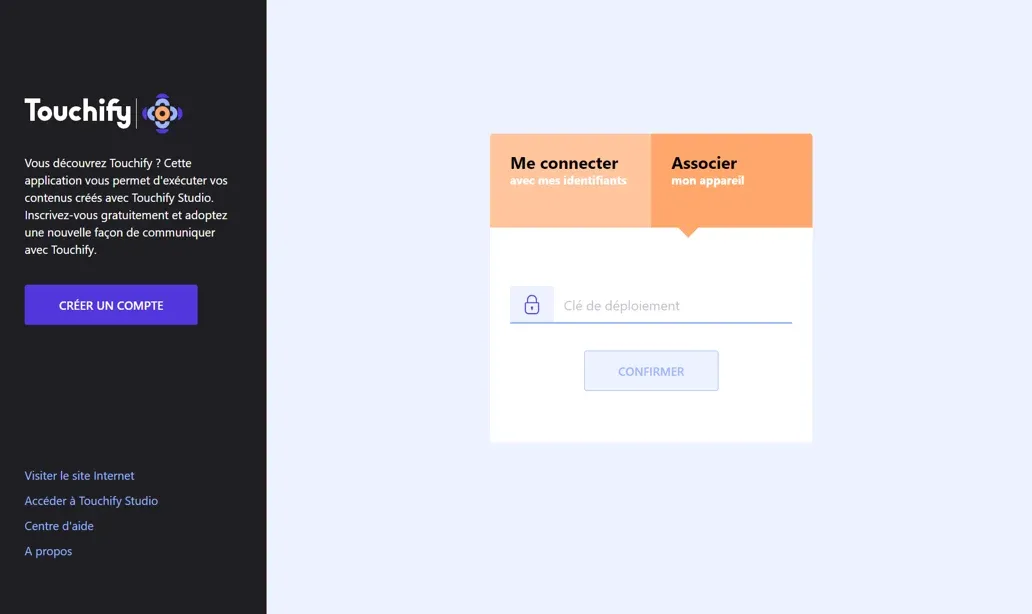
For more information, see the Introduction to Touchify Publisher article.
Configure kiosk mode
Here are two options to configure an iPad in kiosk mode.
Option 1: Single App Mode
As the name suggests, this mode allows you to lock the device to a single application. While effective, this method can be restrictive: it requires using the Apple Configurator app from a Mac or using an MDM solution.
For Apple Configurator, simply connect the iPad with a USB cable. Once the device is recognized, enable Supervised Mode, then in the Actions / Advanced menu, select Start Single App Mode and select the Touchify Player app.
Option 2: Guided Access Mode
The advantage of this method is that it does not require any tools and can be done directly on the device. Start by enabling the Guided Access feature from the iPad's general settings and configure the Passcode Settings.
Screenshot
Once the feature is enabled, launch the Touchify Player app and then triple-click the iPad's Home button to start Guided Access. Configure according to your needs and then click Start.
Screenshot
To exit Guided Access, triple-click the Home button and enter the password.
Screenshot