

Files and Media
Import and Insert
Import
Touchify Studio is an interface that allows you to create your content from your own resources: texts, images, videos, documents... You must therefore import these resources into the Studio before you can format them.


The file explorer stores and classifies your media. You can drop four different types of files there: image, video, audio, PDF... Unfold the left menu by clicking on the orange + "Insert", go to the space corresponding to the file you want to add then click on the orange "Import" button. You can also use the drag & drop technique.
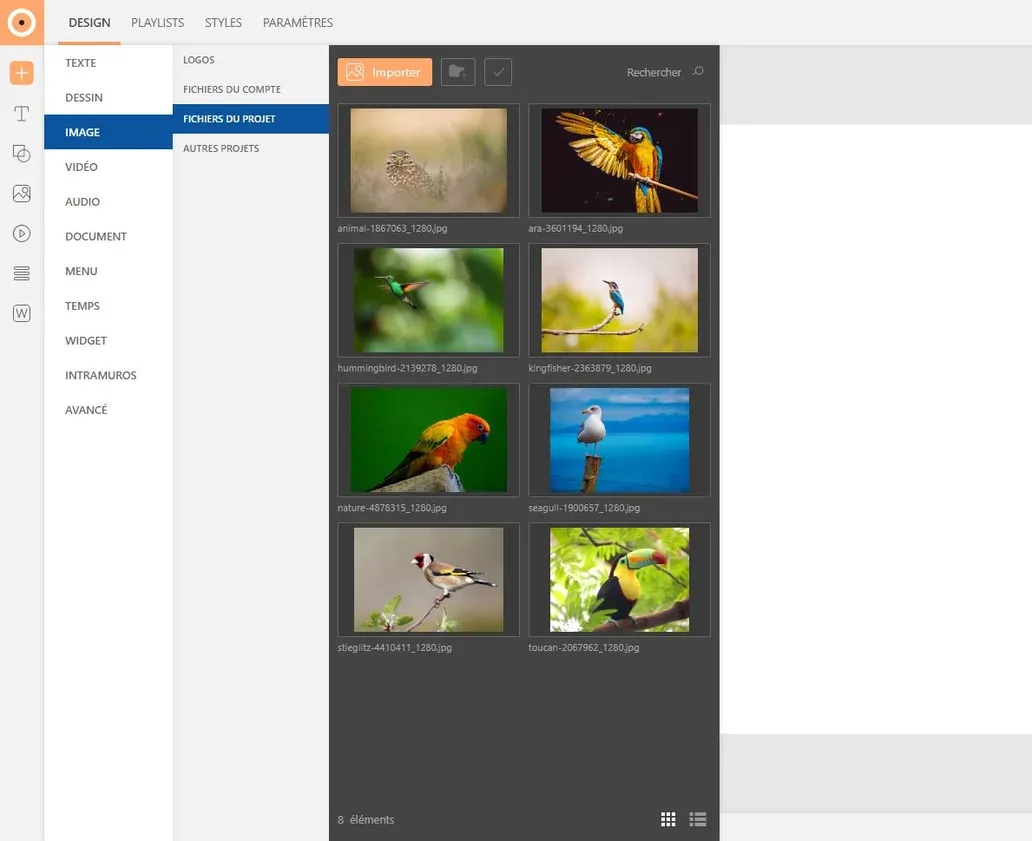
Insert
Once your resource is saved in the Studio, insert it into your page.
Method 1: click
Select the resource you want to add then click on the orange + "Add": the file will appear at scale, at the top left of your page.

Method 2: drag & drop
From the explorer, drag and drop the resource of your choice into your page: it will appear at scale, where you release the click.

Method 3: multiple selection
It is possible to insert multiple files at once.
In the explorer, click on the "Multiple selection" button (check icon) then select the files of your choice. Click on the + "Add" button at the top right of the window, or use the drag & drop technique to insert everything into the page.
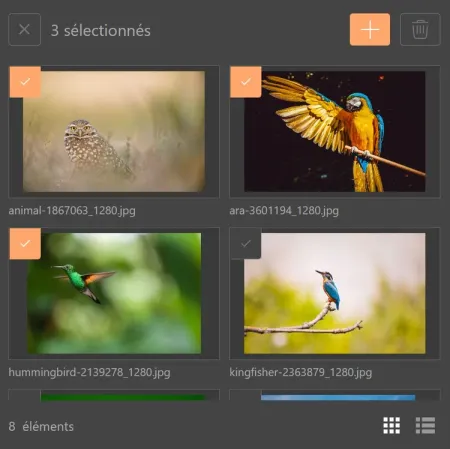
Use your keyboard to select multiple files at once. Select the resources you want to insert by holding the Shift (A > B) or Ctrl (A+B) key.
Features
Classify
To create a folder in the explorer, click on the "Create a folder" button (folder icon) at the top of the window. The folder will be generated in the section (image, video..) where you are.
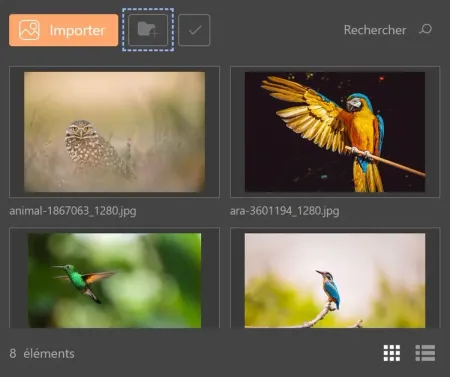
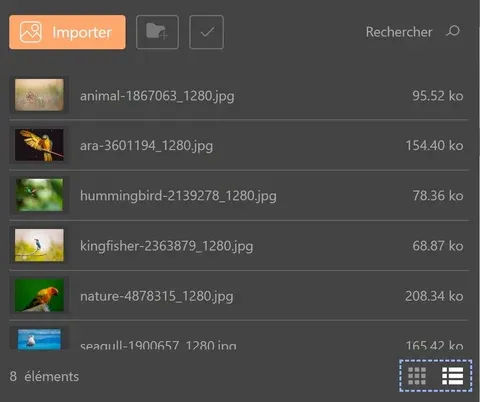
To modify the preview of your files, click on one of the icons at the bottom right of the window: select the grid or list display according to your preference.
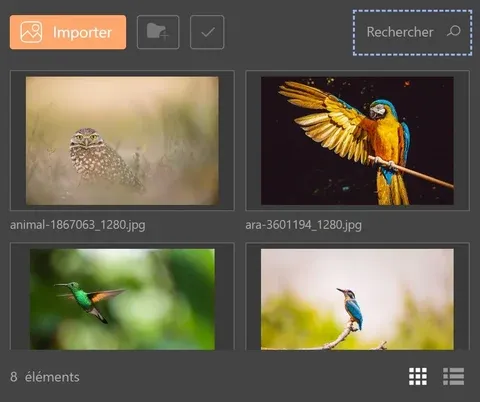
To find a specific file, use the search bar at the top right of the window: type the name of the resource you are looking for.
Modify
To rename a file in the explorer, simply select its title: when the text cursor appears, write the new one. Press the Enter key to validate.
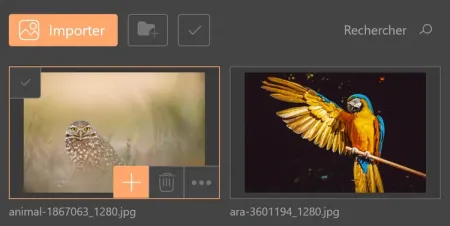
To delete a file, select it in the explorer then click on the "Delete" button (trash icon).
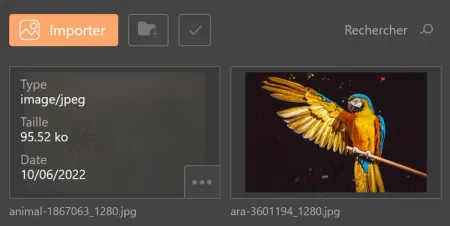
To display file details (type, size, import date...), select it then click on the "Details" button (three dots).
Move
To modify the location of a file or folder, use the drag & drop method: hold down the left click then drag your resource to the location of your choice.
Account files and project files: what's the difference?
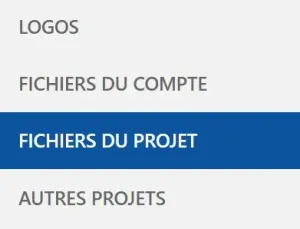
Two types of galleries are offered to you in the Studio: account files and project files. Although they are accessible from the same place, these explorers are different.
Account files:
The resources you import there are linked to your Touchify account. They will be available in all your projects.
Project files:
The resources you import there are linked to the project. They are exclusive to it and will not be visible in your other projects, unless you look for them in the "Other projects" gallery.
Other projects:
This gallery groups together resources imported in all your projects. You can find files available in all "Project files" galleries there.
Logos:
Import your logos and brand images in the "My brand" profile section. They will appear in all your projects.