Introduction
Element Animation
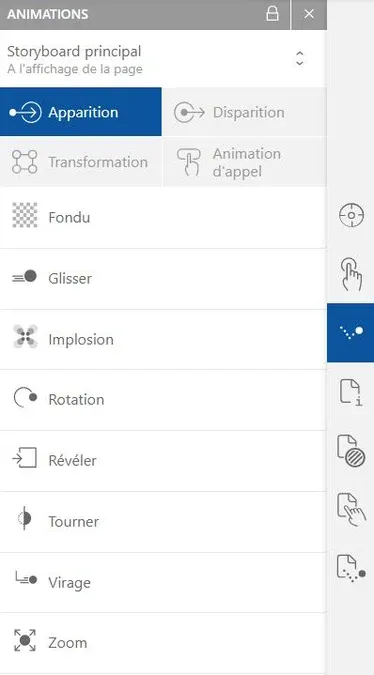
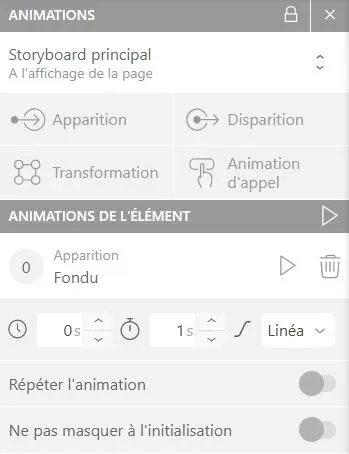
To animate an element, select it then click the "Animation" button (bounce icon) in the right sidebar. The panel will open on the animations list: select the one you want to apply to the element then modify its settings (duration, speed curve...) in the new Element animations panel.
Animation Type
Animations are separated into four families. Each corresponds to a type of use described below.
Entrance
These animations are designed for the appearance of elements, when the page opens.

Exit
In parallel with the "Entrance" section, this list concerns exit animations.

Transform
These animations modify the position, size or transparency of the element over the long term.

Call to Action
These animations are designed as loops, so they can be repeated to attract the user's attention.

Page Transitions
Apply page animations to smooth navigation.
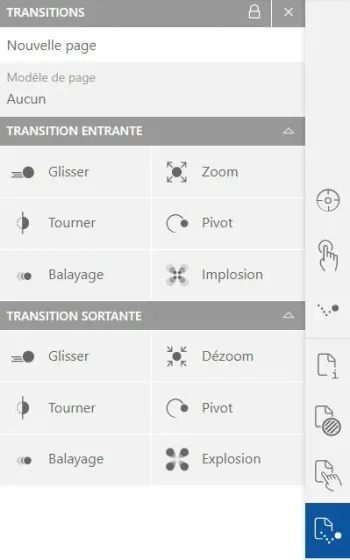
Click the "Page transitions" button (page/bounce icon) in the right sidebar. Choose the animations of your choice: page entrance and exit are independent.
Since the panels are already classified by animation type, you will not find the four families offered for element animations.