

Interactions
Introduction
Learn to make your content interactive using Studio tools.
Apply an Interaction
Select your element then click the "Element interactions" button (touch icon) in the right sidebar. Click the "Add an interaction" button.
In the proposed list, choose the action that this element will trigger when the user interacts with it.
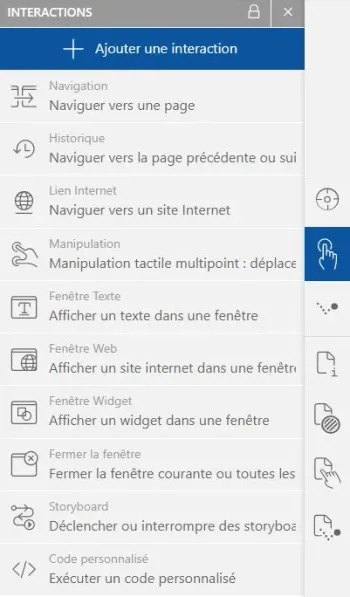
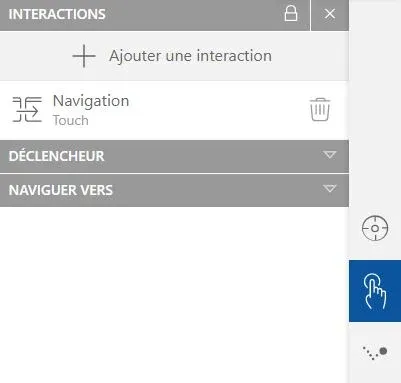
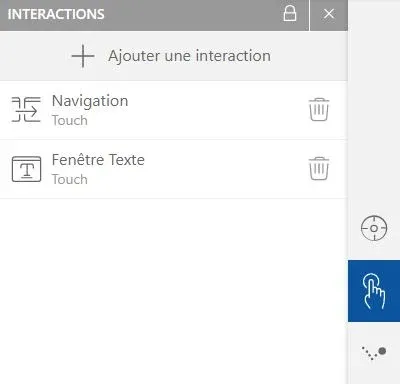
A settings tab will be created for each added interaction.
Indeed, it is possible to apply multiple interactions to the same element: to avoid conflicts, make sure to choose a different trigger for each of them.
Triggers
The trigger determines how the user can interact with the object.
Select the interaction then click on the "Trigger" panel: unfold the button and choose from the proposed options.
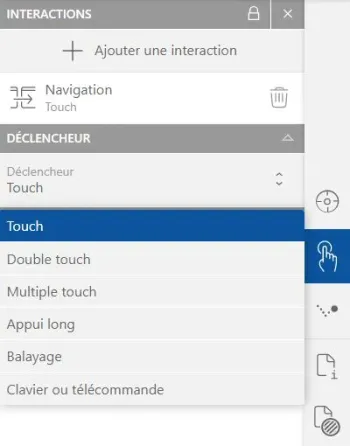
- Touch: touch (or click) to activate
- Double touch: touch twice (or double-click) to activate
- Multiple touch: choose the number of touches (or clicks) needed to activate the action
- Long press: hold a touch (or click) to activate
- Swipe (touch screens only): swipe the screen in the direction of your choice to trigger the action
- Keyboard or remote: connect the buttons of a peripheral (keyboard, remote...) to the trigger
Although this article takes element interactions as an example, it is possible to make the entire page interactive.
Click the "Page interactions" button (touch/page icon) in the right sidebar. The same functionalities will be offered to you, with the difference that the triggers will be applied to the entire page and not to a targeted element.
Click the "Page interactions" button (touch/page icon) in the right sidebar. The same functionalities will be offered to you, with the difference that the triggers will be applied to the entire page and not to a targeted element.