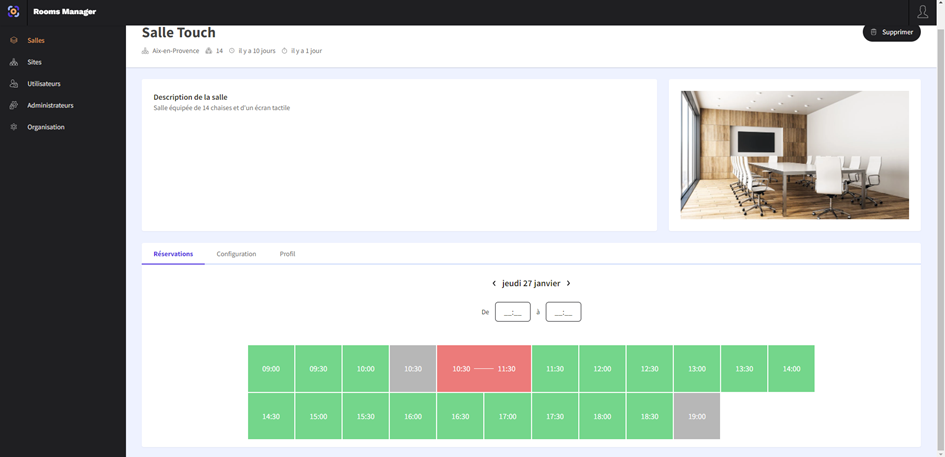
Reserve a room for a user
Portal access
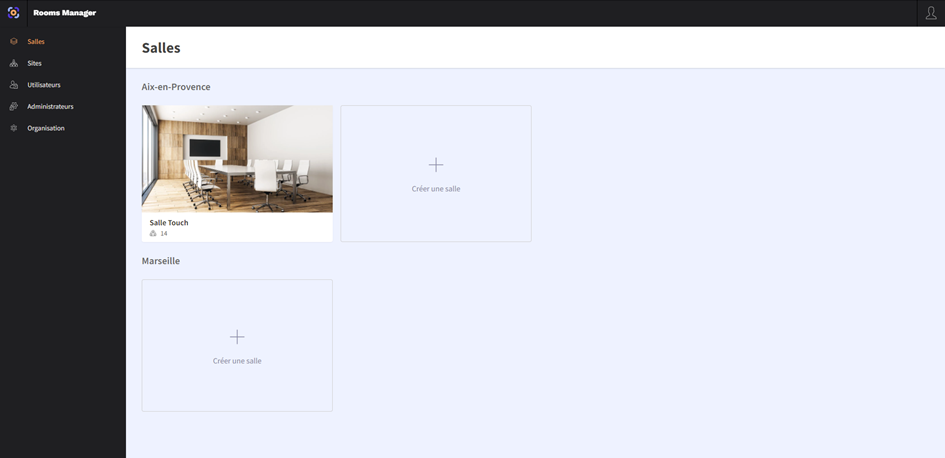
When you arrive on the Rooms Manager platform, a menu appears on the left with several sections: Rooms, Sites, Users, Administrators and Organization.
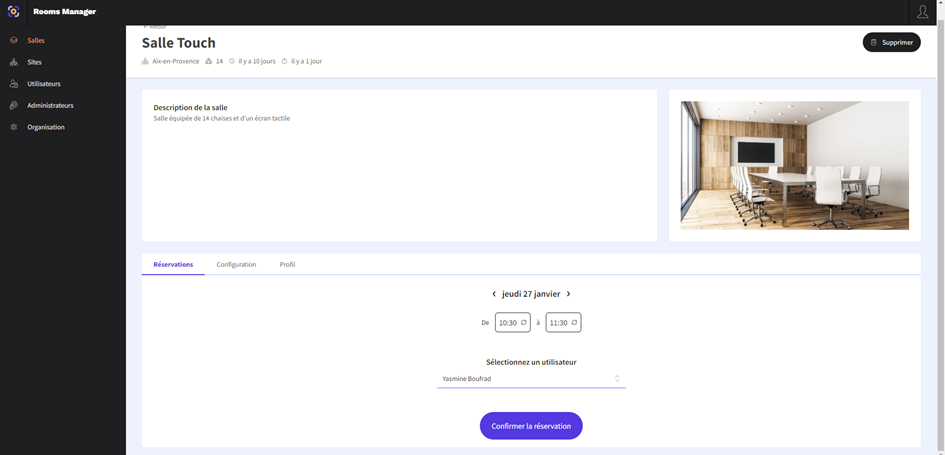
To reserve a room, start by navigating to the Rooms section then click on the room in which you want to place your reservation (in our example this will be the Touch Room).
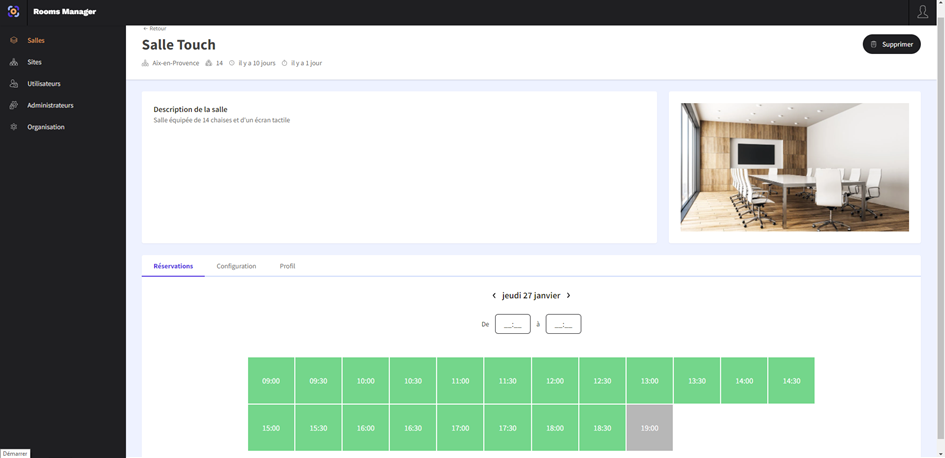
You will then be redirected to the management page of the selected room. On this page, you will find all the information concerning the room as well as a schedule allowing you to reserve a time slot.
Select a time slot
To reserve a time slot in your room, start by selecting the date on which you want to position your reservation then click on the start and end times.
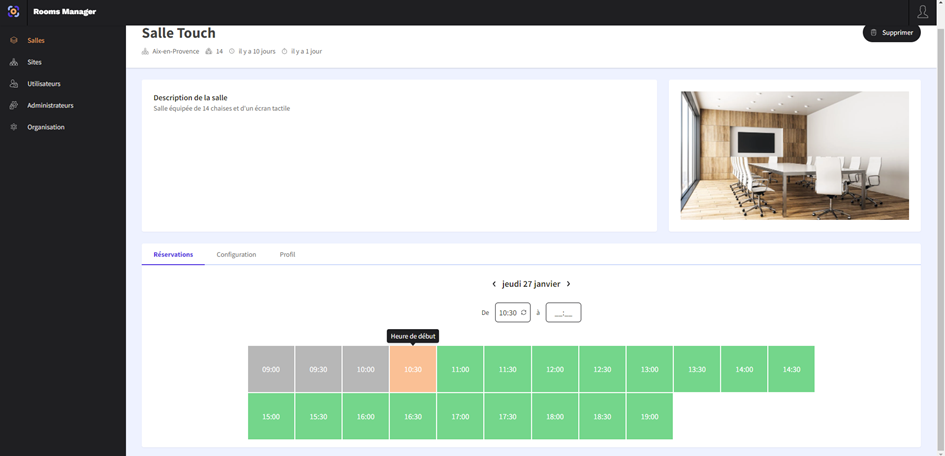
Continue by choosing the user who will be assigned to this reservation then click the "Confirm reservation" button.
Reservation confirmation
Your reservation is taken into account immediately and communicated to all connected tablets.
It appears in red on the schedule indicating that this time slot is properly assigned. The meeting room will therefore no longer be available for this time slot.