

Introduction
Introduction
Touchify Publisher allows you to broadcast your content in a centralized way, configure your screens remotely and monitor the connectivity of your digital fleet.
Getting Started
Publisher is accessible from the main menu.
Create my first broadcast group
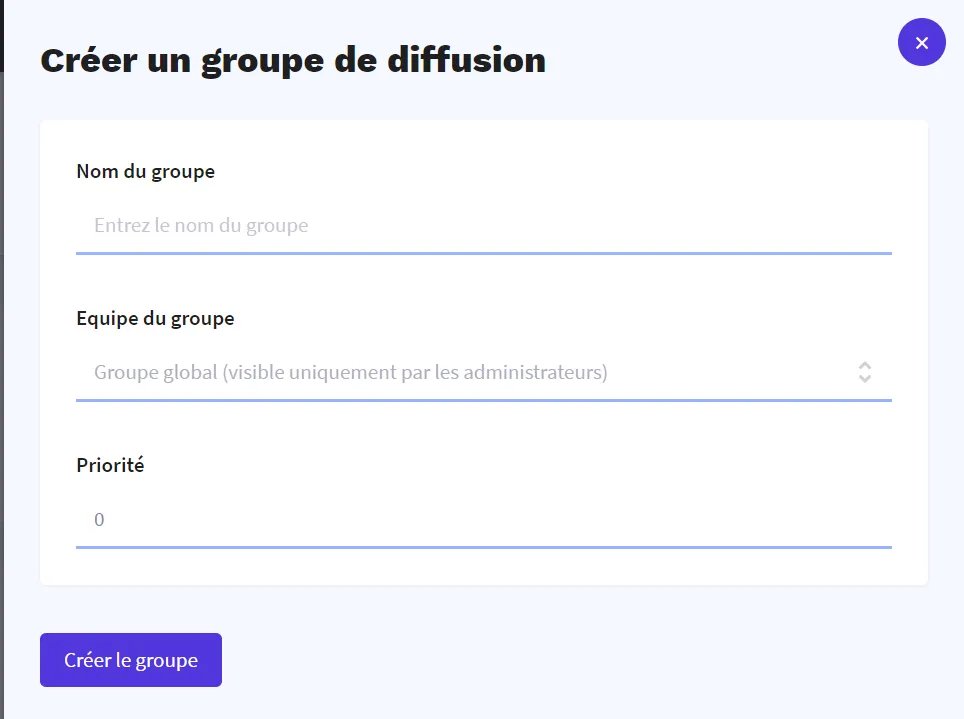
To create a broadcast group, click on the "Create a broadcast group" button.

A form appears to configure the group. Define a name and click on the "Create group" button.
Configure the content broadcast on screens
Now, your broadcast group is available. It is necessary to define the content that should be displayed on the screens that will be associated with this group.
On the group page, in the "Projects" tab, click on the "+" button to add projects to the group.
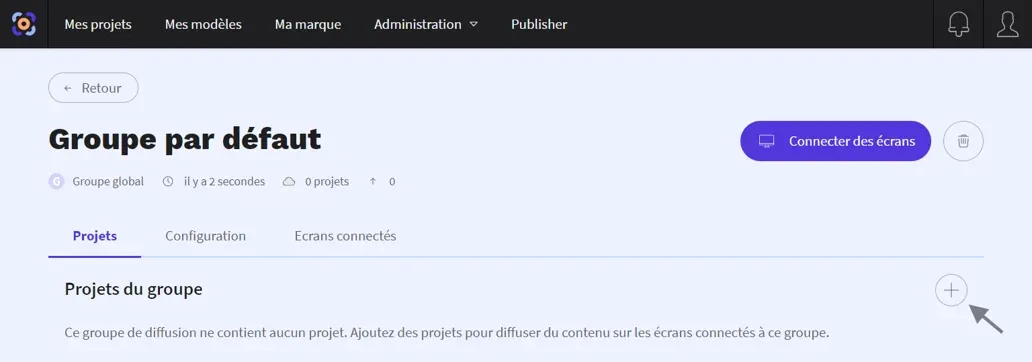
A window appears, select a project from the list then click on the "Save" button to validate the configuration.
Connect screens to my group
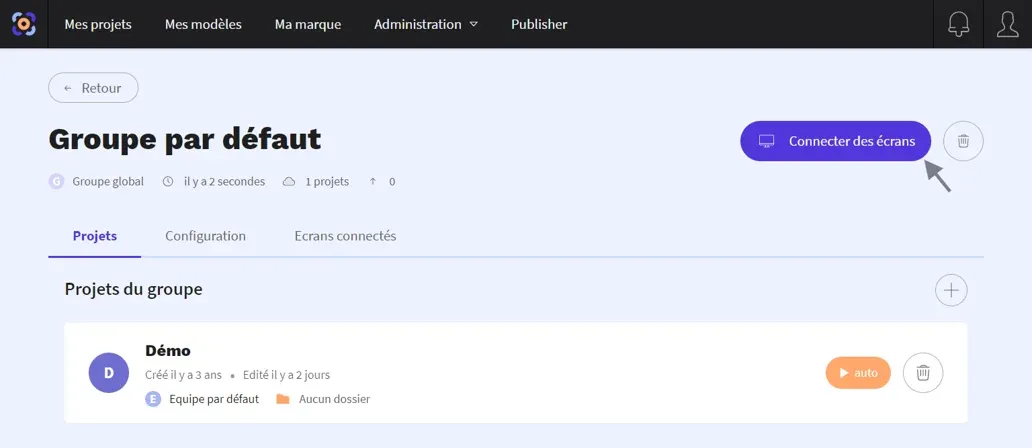
Your broadcast group is now ready. You can connect screens and associate them to this group by clicking on the "Connect screens" button.
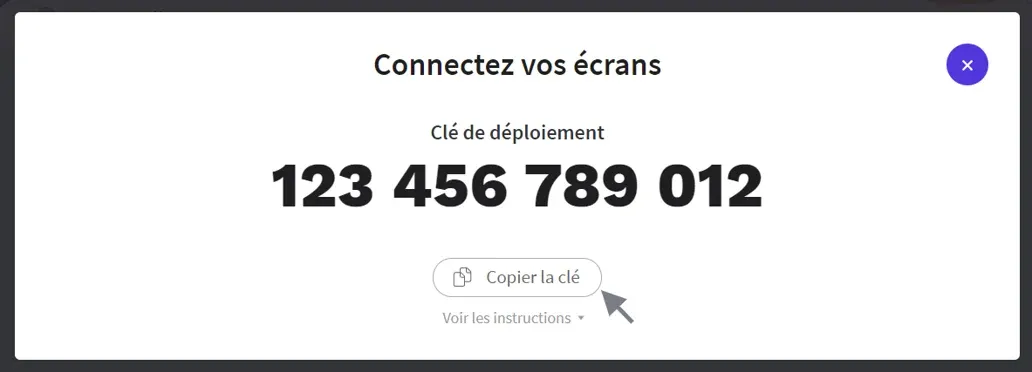
A window appears and displays a deployment key. This key allows you to associate a screen with the broadcast group. Copy this key, you will need it when installing the Touchify application.
Associate your screen
To start, install the Touchify application on your screen by following the instructions available in the following article: How to install the Touchify application?
During the first startup, click on "Associate my device" then enter the deployment key obtained earlier. Finally, click on "Confirm".
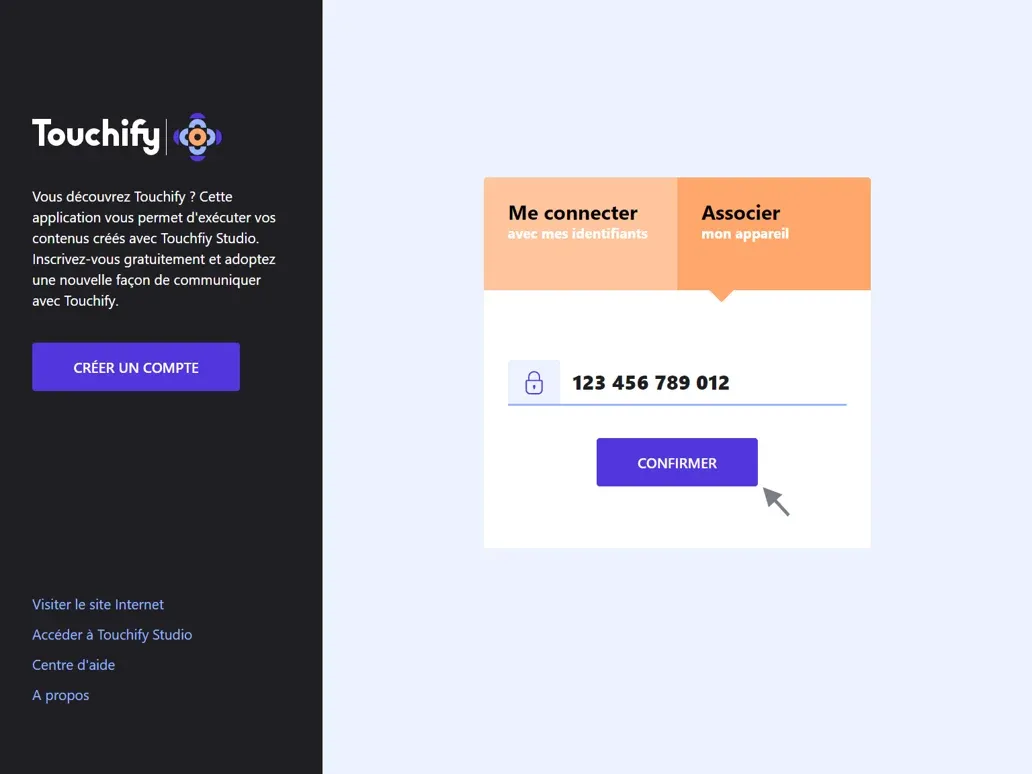
Congratulations, you have now connected your first screen to Touchify. You can now control this screen remotely by configuring the broadcast group to which the screen is associated.