

Player options
Show tools
A right-click or long-click displays the player tools. The displayed buttons depend on the account level, project, and broadcast group configuration.
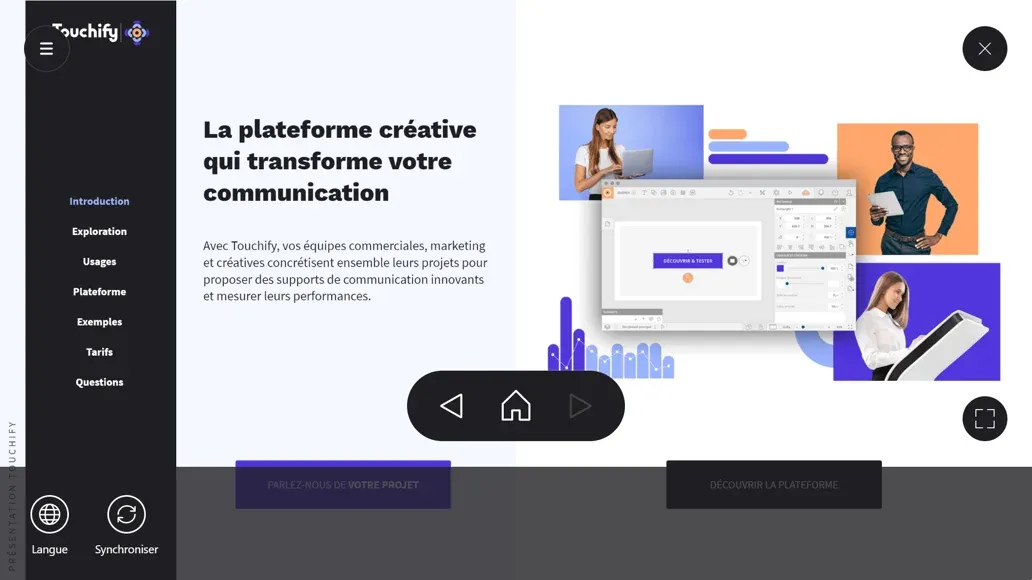
Administrator mode
Depending on the broadcast group configuration, tools can be completely disabled. Administrator mode allows access to tools by clicking successively on the 4 corners of the screen, starting from the top left corner, clockwise.
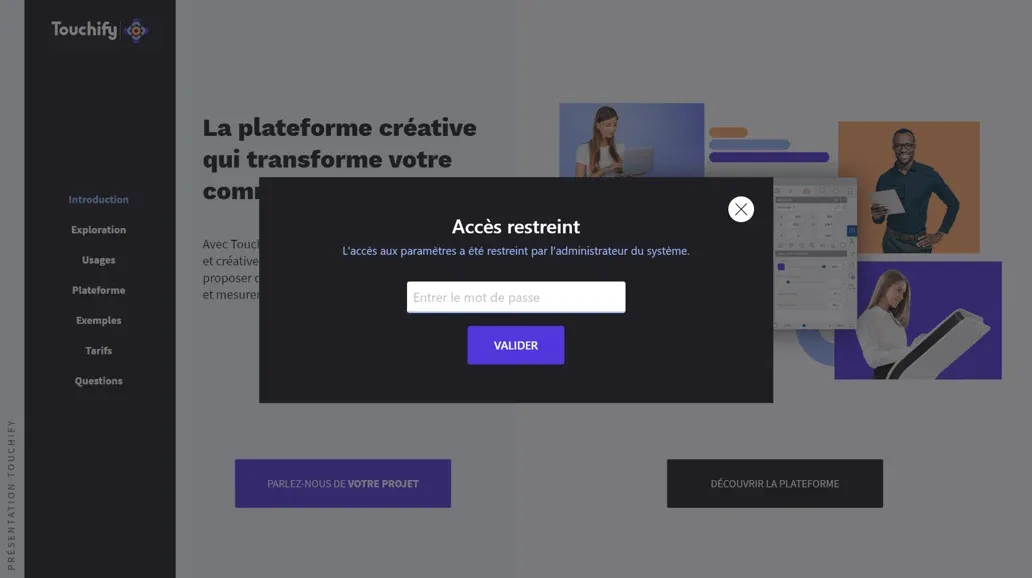
It is strongly recommended to protect Administrator mode with a password in the broadcast group configuration.
Administrator mode is disabled if the password is not set and the Hide all buttons option is enabled.
Main buttons
Close player
The Close button, at the top right of the screen, allows you to return to the home screen.
Full screen
The Full screen button, at the bottom right, allows you to enable or disable full screen mode.
Settings
The Menu button, at the top left, provides access to settings, disconnection, or closing the application depending on the device configuration.
Navigation
The navigation buttons, at the bottom center, allow you to return to the home screen, navigate to the previous page or the next page.
Enable sound
Depending on the devices, the sound of automatically played videos must be disabled by default. In which case the Enable sound button appears on screen as well as in the tools.
Project tools and settings
The tools are displayed to the left of the toolbar at the bottom of the screen. The project settings are positioned on the left. They are only visible if the relevant features are enabled.
The toolbar features are detailed in the Advanced Features section.