

Windows Installation Guide
If this happens, click Keep or Run.
Download the application
Access the Touchify Player application download page and download the version corresponding to your operating system.
Download Touchify PlayerInstall the application
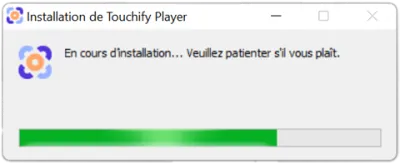
Run the downloaded file to start the installation. The program extracts the files and then runs the application. By default, updates are downloaded automatically and installed when the application is closed.
Connect
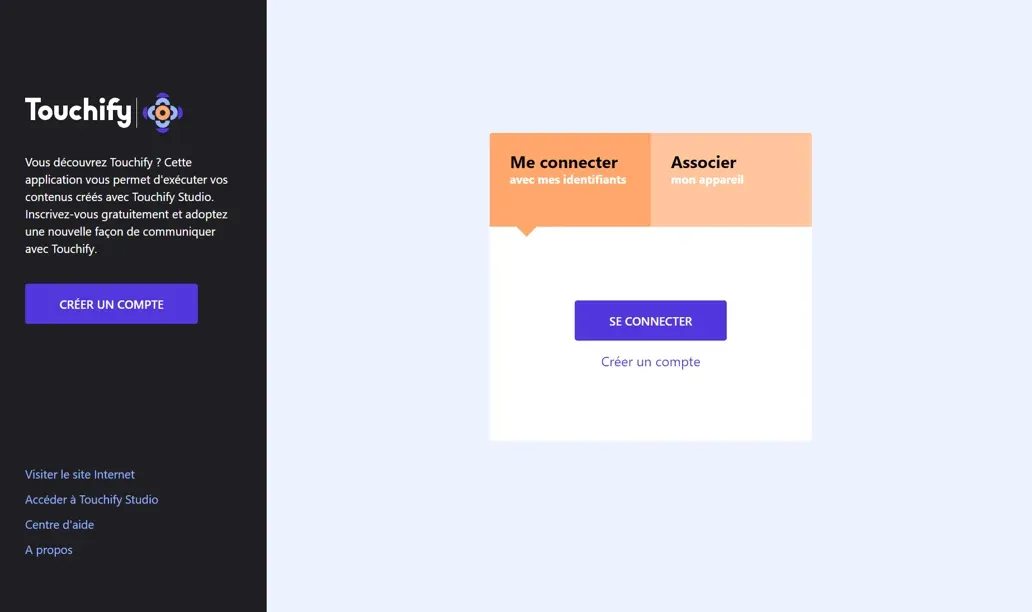
The Touchify Player application offers 2 authentication modes.
Connect with a user account
Use your credentials to connect to your user account and access your published projects.
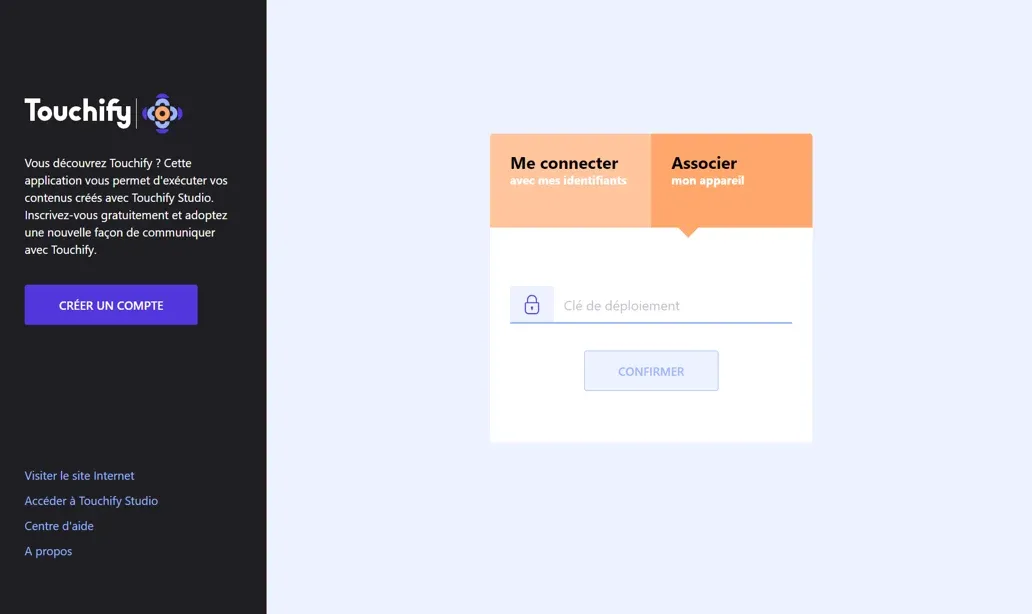
Associate a screen with a broadcast group
Use a deployment key to associate the computer with one or more broadcast groups and control it from Touchify Publisher.
For more information, see the Introduction to Touchify Publisher article.
Configure secure kiosk mode
Kiosk mode allows you to secure the system and automatically run the application when the computer starts up.
Prerequisites
The computer is connected to a broadcast group on which kiosk mode is enabled.
Enable kiosk mode
On first startup of the application, after connecting the computer, a message will ask if you want to enable kiosk mode. Click Confirm to apply the configuration.
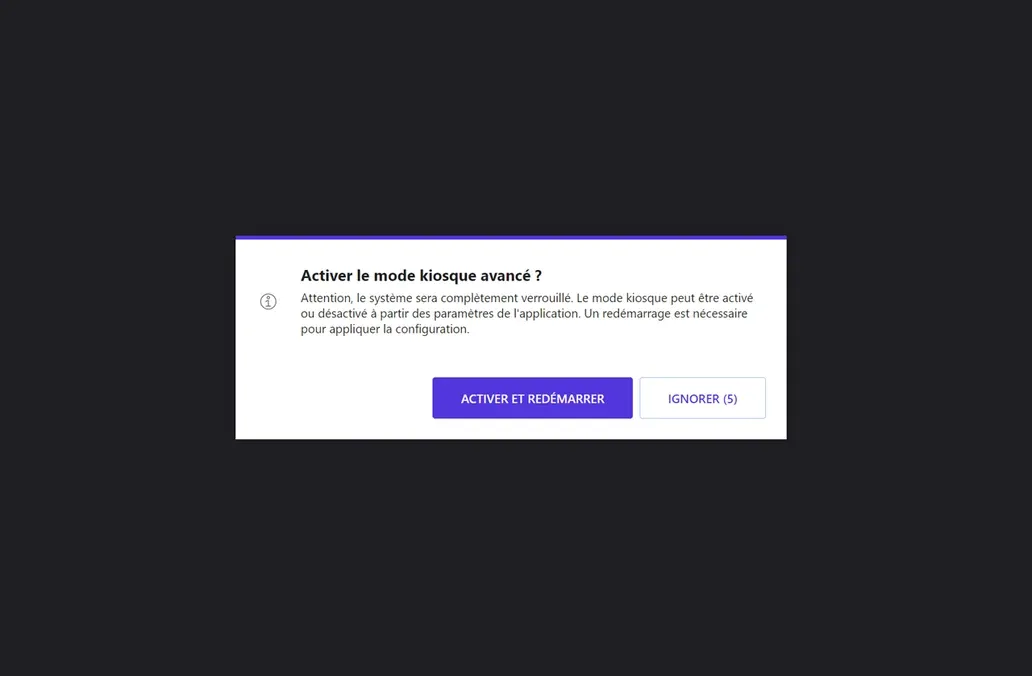
You can enable or disable kiosk mode at any time from the application settings. If you disable kiosk mode, the application will prompt you to reactivate it on the next startup.
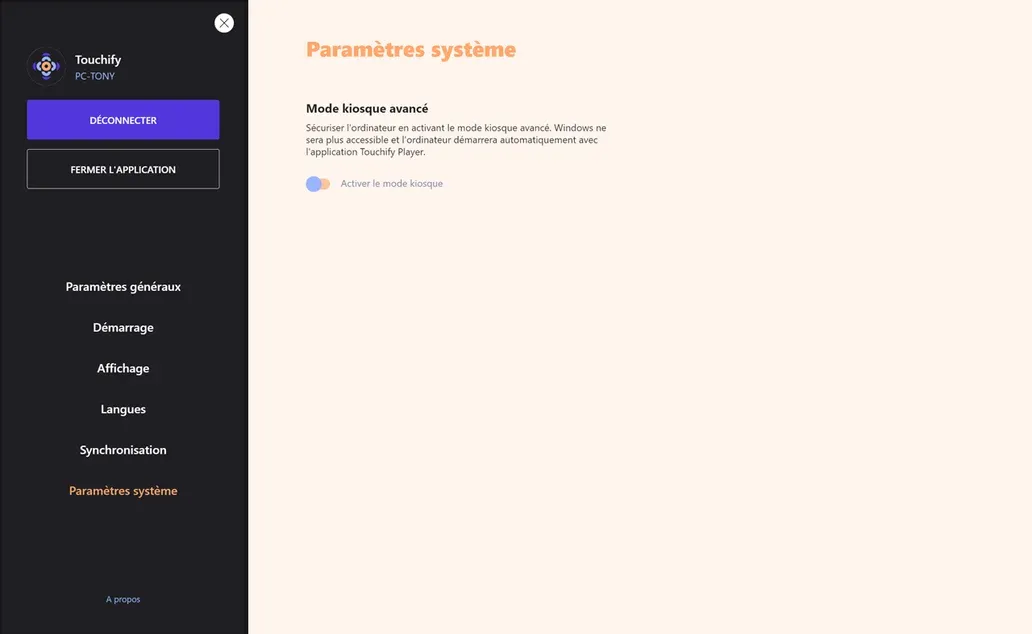
Special case: this feature is disabled if the password is not set and the "Hide all buttons" option is enabled.