

Home Screen
Overview
The home screen displays the list of published and authorized projects according to the account or broadcast group configuration.
If you are logged in as a user, you will also find the folder organization as defined in your space as well as the user's teams.
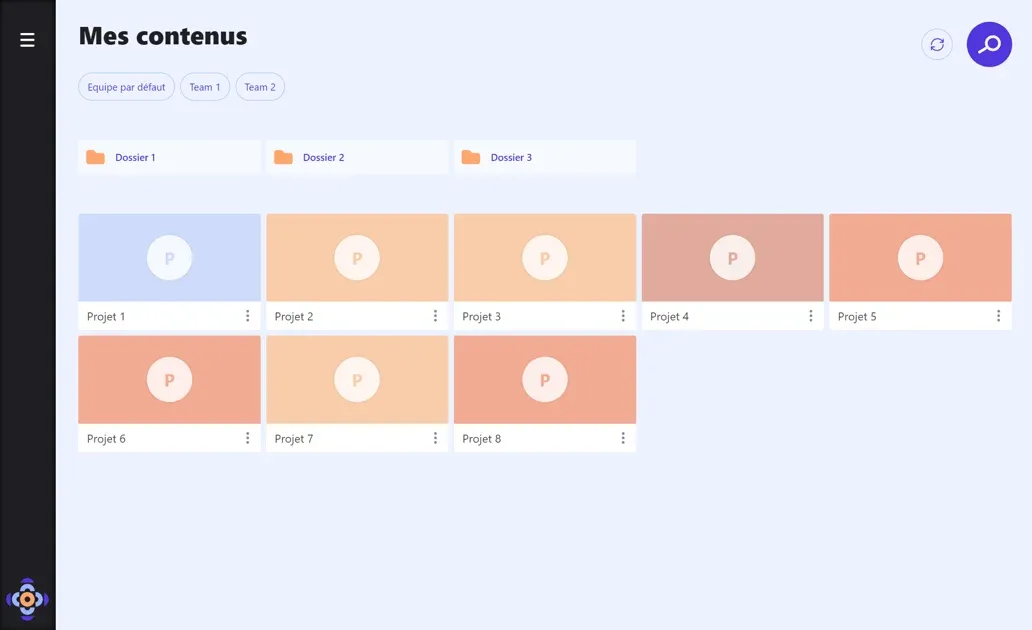
Teams
Click on a team to filter the project list.
Search
The Search button launches a search in the title and description of projects.
Synchronize
The Synchronize button allows you to force content synchronization.
Open a Project
Click on a project tile to start playback. The player displays in a new full-screen window. A long click on the screen allows you to display tools and close the project window.
For more information, please consult the article Player Settings.

Project Details
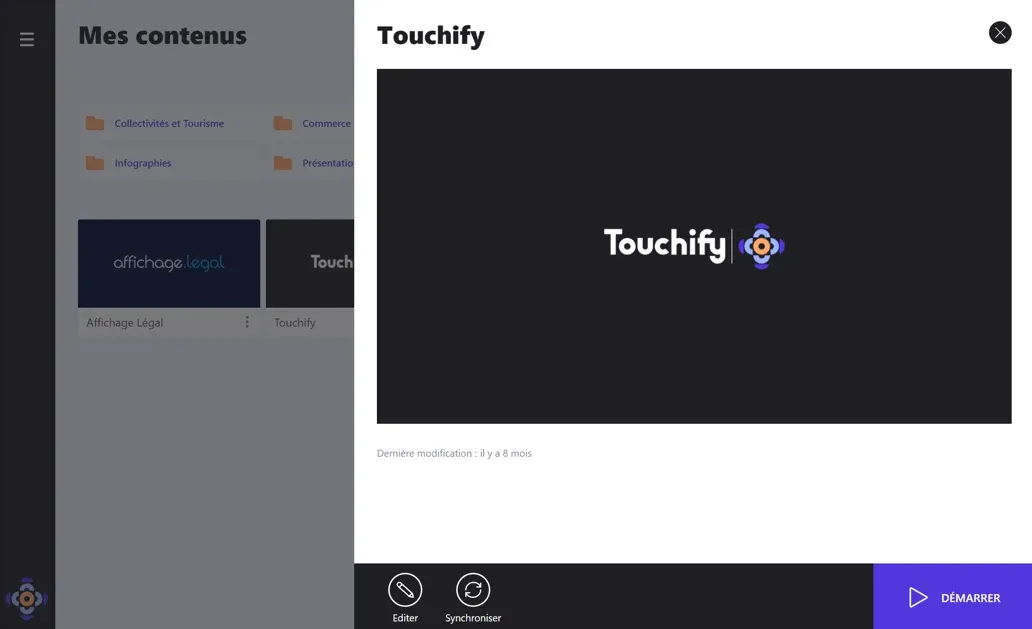
On a project tile, click on the Details button at the bottom right to display details. You can thus access project-specific tools and settings.
Project tools and settings are detailed in the Advanced Features section.
Application Menu
The application menu is accessible from the Menu button at the top left of the screen. It notably allows access to settings and disconnecting the application.
Settings are detailed in the Application Settings article.
