

Android Installation Guide
Install the application
Two installation options are available for Android:
- Web application: simple, no permissions required, no system features
- Native application: installation from the application package
Option 1: web application
Use Google Chrome on your Android device to access the URL: https://player.touchify.io.
Open the browser settings and select Add to home screen.
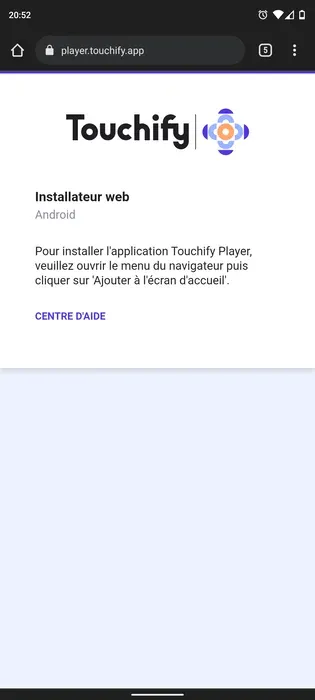
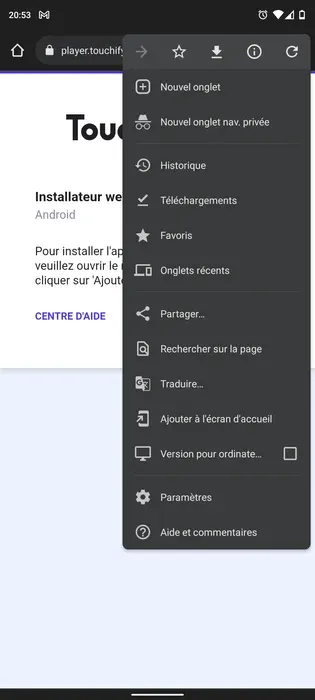
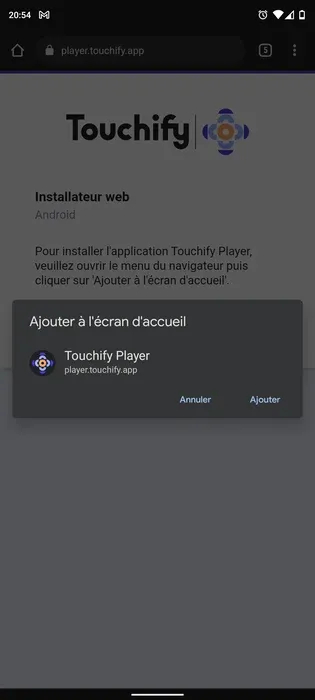
Installation complete, the Touchify Player application is installed on your device and accessible from the home screen.
Option 2: native application
Download the Touchify Player application for Android on your device: Touchify APK.
Open the touchify.apk file to install the application.
In some cases, the system will ask to authorize the installation of unknown applications to install the package.
The native application includes an automatic update mechanism. It also offers specific features: configure a secure kiosk mode, set a project as a custom application launcher, use Touchify as a screensaver...
Connect
The Touchify Player application offers 2 authentication modes.
Connect with a user account
Use your credentials to connect to your user account and access your published projects.
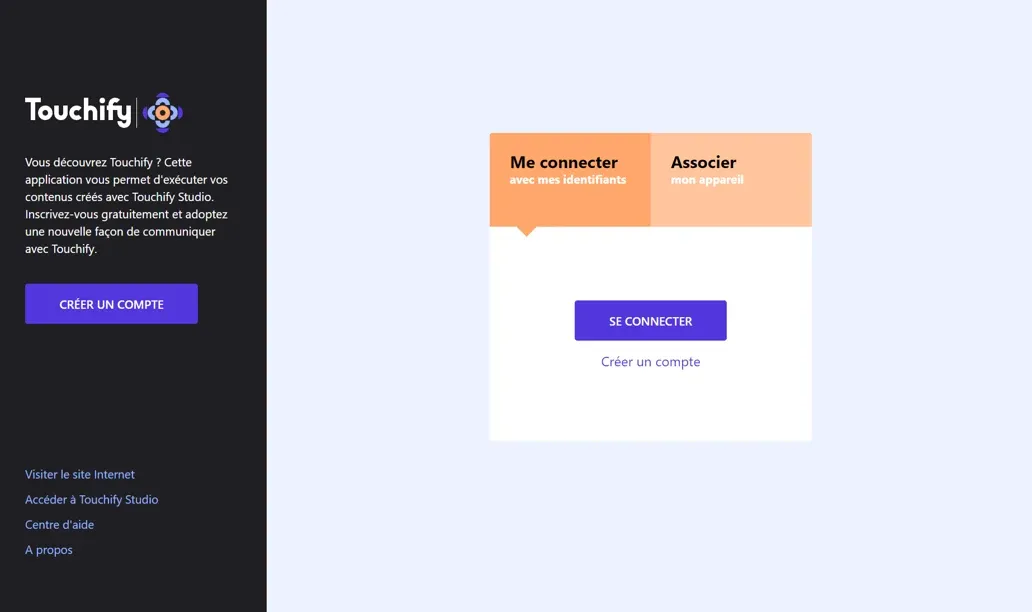
Associate a screen with a broadcast group
Use a deployment key to associate the computer with one or more broadcast groups and control it from Touchify Publisher.
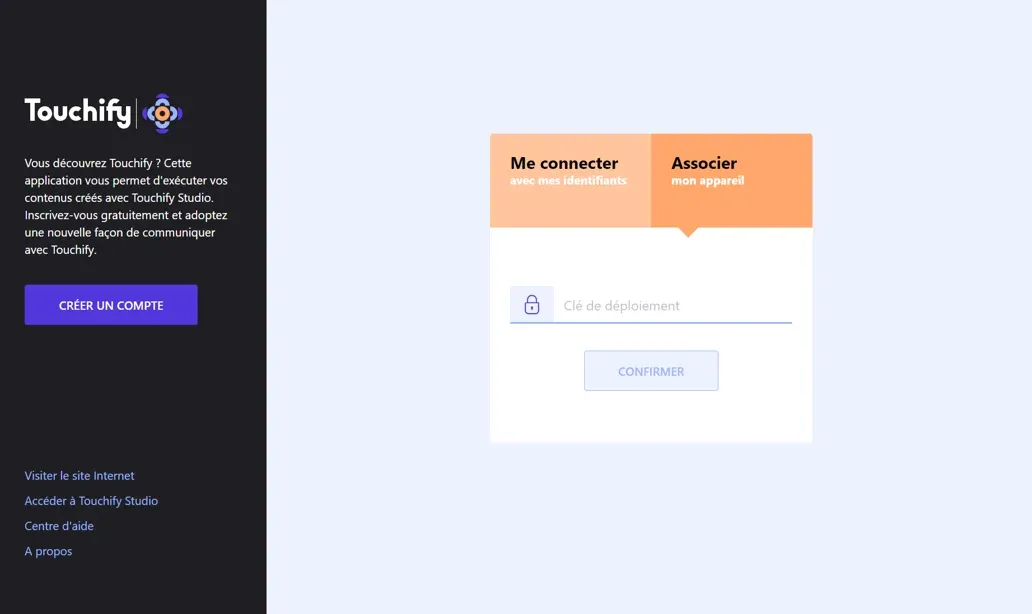
For more information, see the Introduction to Touchify Publisher article.
Configure kiosk mode
Prerequisites
The native application is installed and the device is connected to a broadcast group.
It is recommended to enable kiosk mode in the broadcast group configuration and set a password to restrict access to the application settings.
To access settings or close the application in secure kiosk mode, touch the 4 corners of the screen successively starting from the top left corner, clockwise.
Special case: this feature is disabled if the password is not set and the "Hide all buttons" option is enabled.
Option 1: simple kiosk
This method allows you to secure an Android device simply but with certain limitations. In particular, system elements may appear by swiping from the top or bottom of the screen although they are inactive. This does not impact the security of the device.
To enable kiosk mode, access the application's system settings.
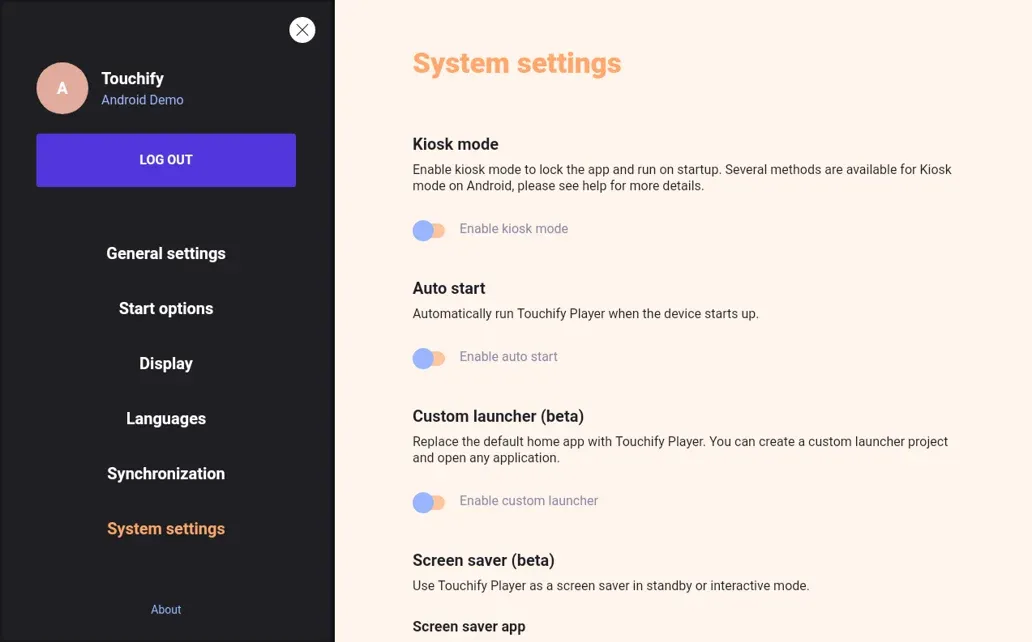
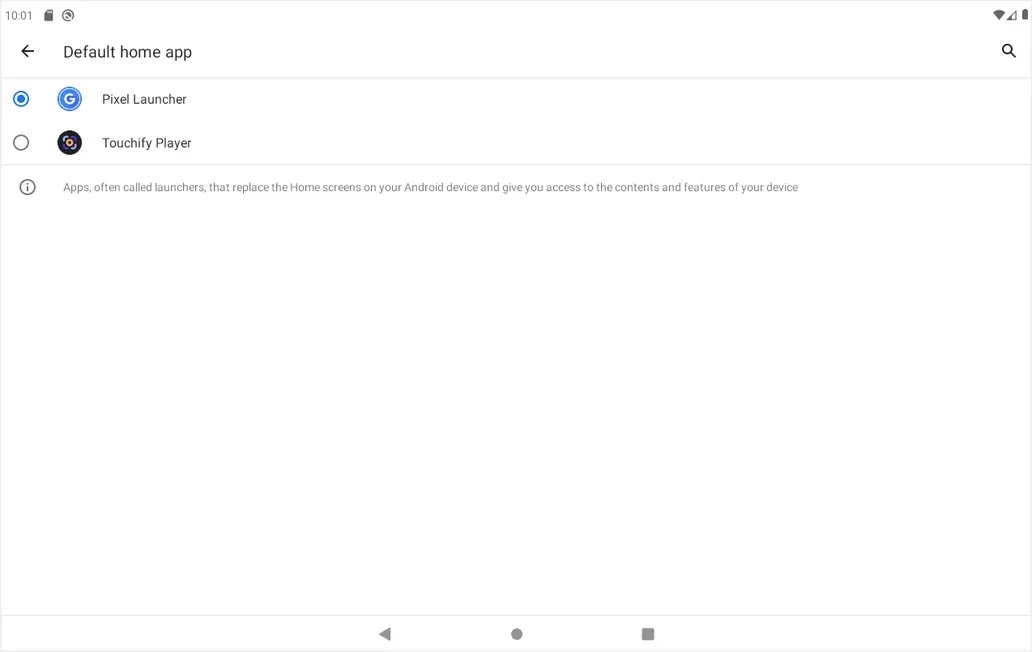
Confirm kiosk mode activation, then set Touchify Player as the home application or Home App. This screen may change depending on Android versions.
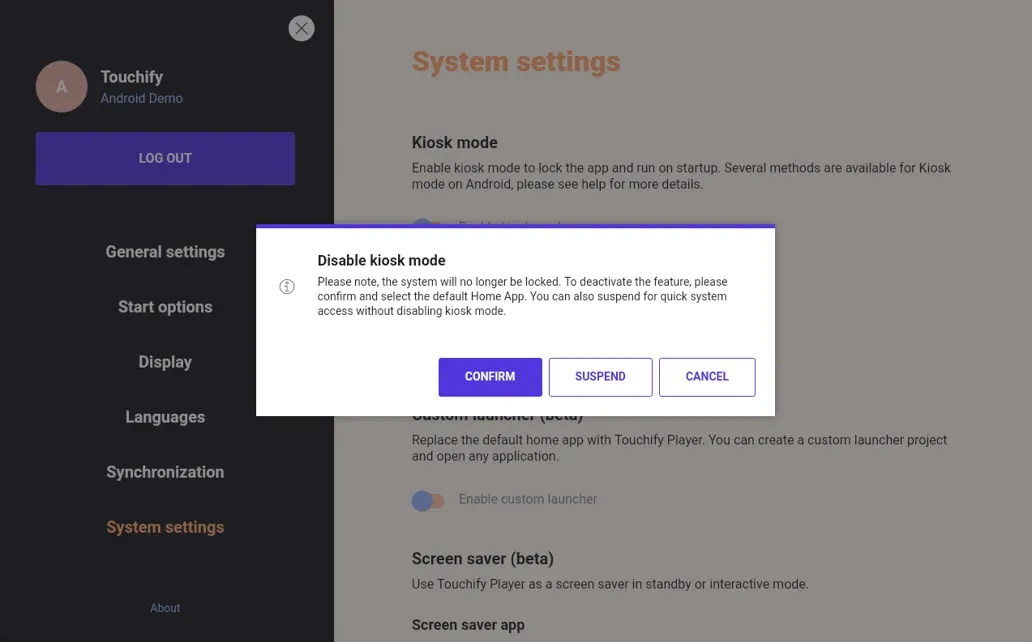
The Touchify Player application then restarts in kiosk mode. You can disable or temporarily suspend kiosk mode from the application's system settings.
Option 2: advanced kiosk
This method allows you to set up a fully secure kiosk mode by configuring the Touchify Player application as Device Owner using Android Device Bridge (ADB).
- Connect the device to a computer using a USB cable;
- Enable USB debugging;
- Run the following commands with ADB:
## check if your device is available and authorized
adb devices

## install the touchify package
adb install -r "PATH\TO\touchify.apk"

## set device owner
adb shell dpm set-device-owner co.touchify.player/co.touchify.cordova.plugin.kiosk.KioskDeviceAdminReceiver
That's it, the application will automatically start in secure mode. You can temporarily suspend kiosk mode from the application's system settings.
If Android development tools are installed on your computer, ADB is located in the SDK platform-tools folder, for example AppData/Local/Android/Sdk/platform-tools.
You can also download ADB from Google Android Developers.