Element display conditions
Playlist elements can be configured individually. Their display can depend on certain conditions.
To add a condition to a playlist element, select it and expand the "Display Conditions" panel on the right side of the interface.
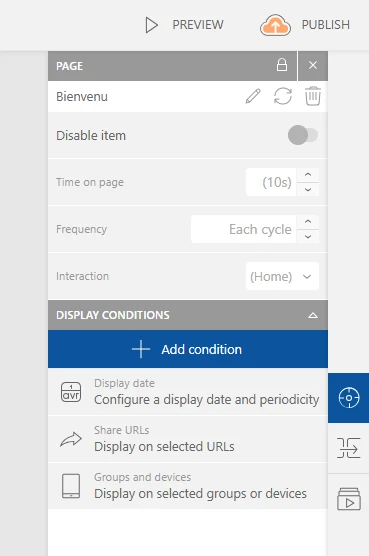
Click "Add a condition" and choose from:
- Display dates, to define a duration or a recurring schedule
- Groups and screens, to choose which screens in your network can display this element
Example: scheduling by date
I want to promote a summer sale. I'd like a promotional page to appear in my welcome screen's news feed, from June 24 to July 21.
In my playlist, I add this promotional page and apply a time condition to it:
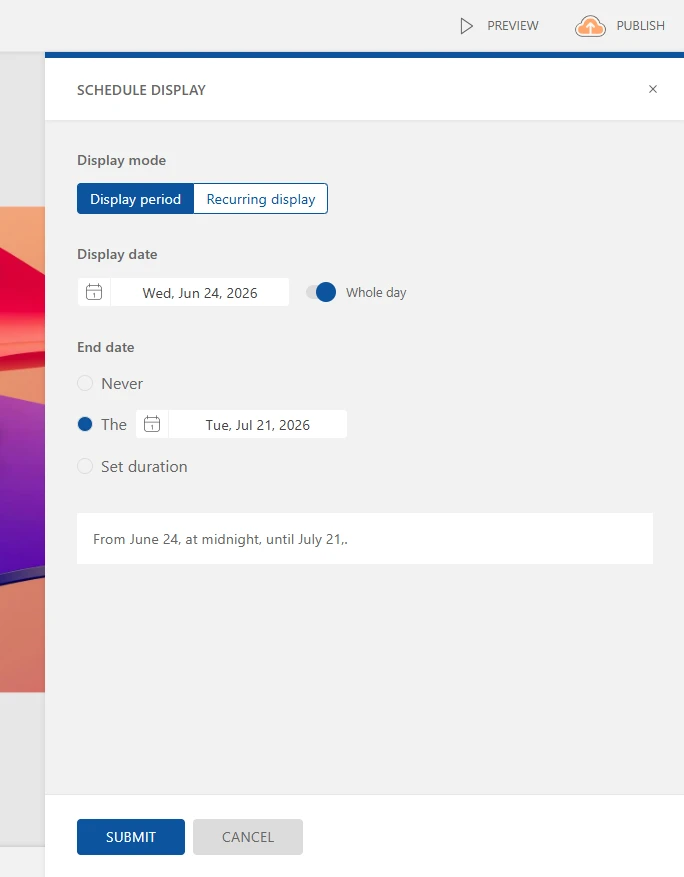
This way, my promotional page will automatically be added to my display on June 24, then stop appearing on July 21, without any manual action on my part.
Example: scheduling by screen
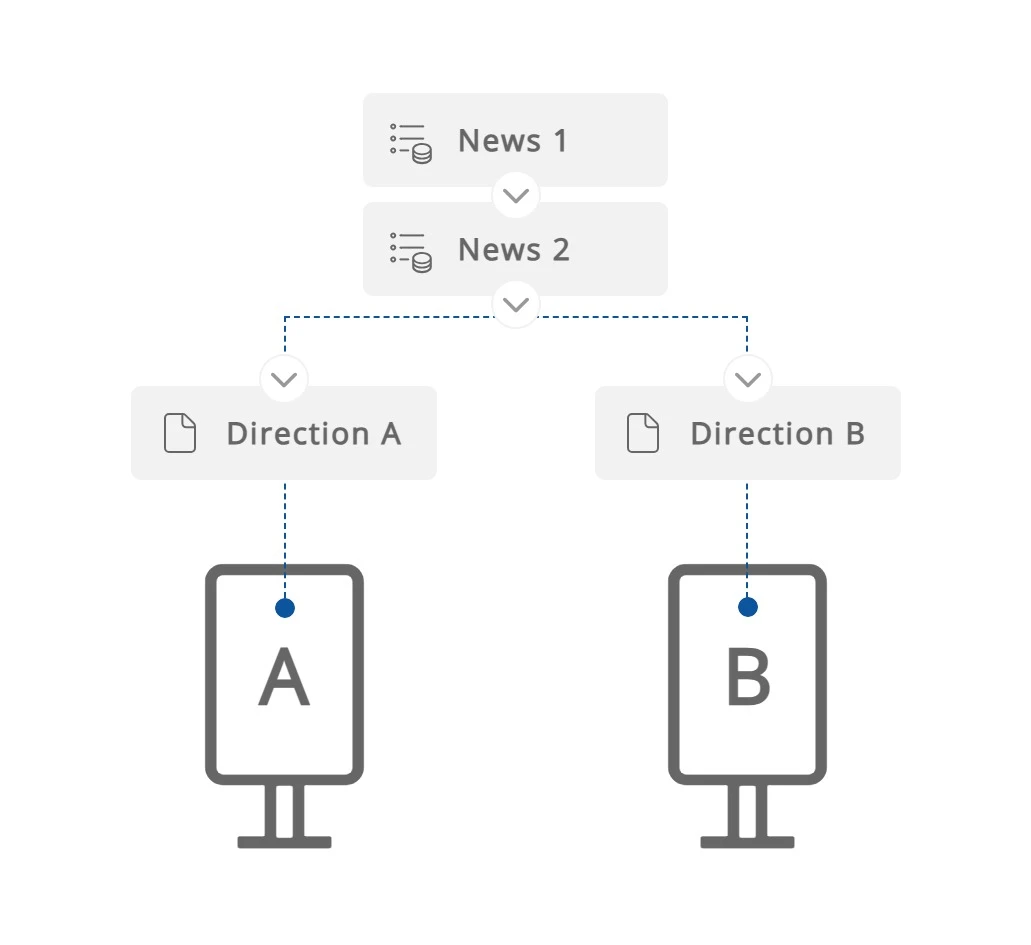
I have two display screens in my shopping mall, both playing the same news playlist. I want to add a page showing directions to the elevators, but I can't show the same page on both screens since their position relative to the elevators is different.
In my playlist, I create two directional pages: one for screen A, and one for screen B. I add a condition to the "Screen A" page to include it on screen A, and a condition to the "Screen B" page for screen B.
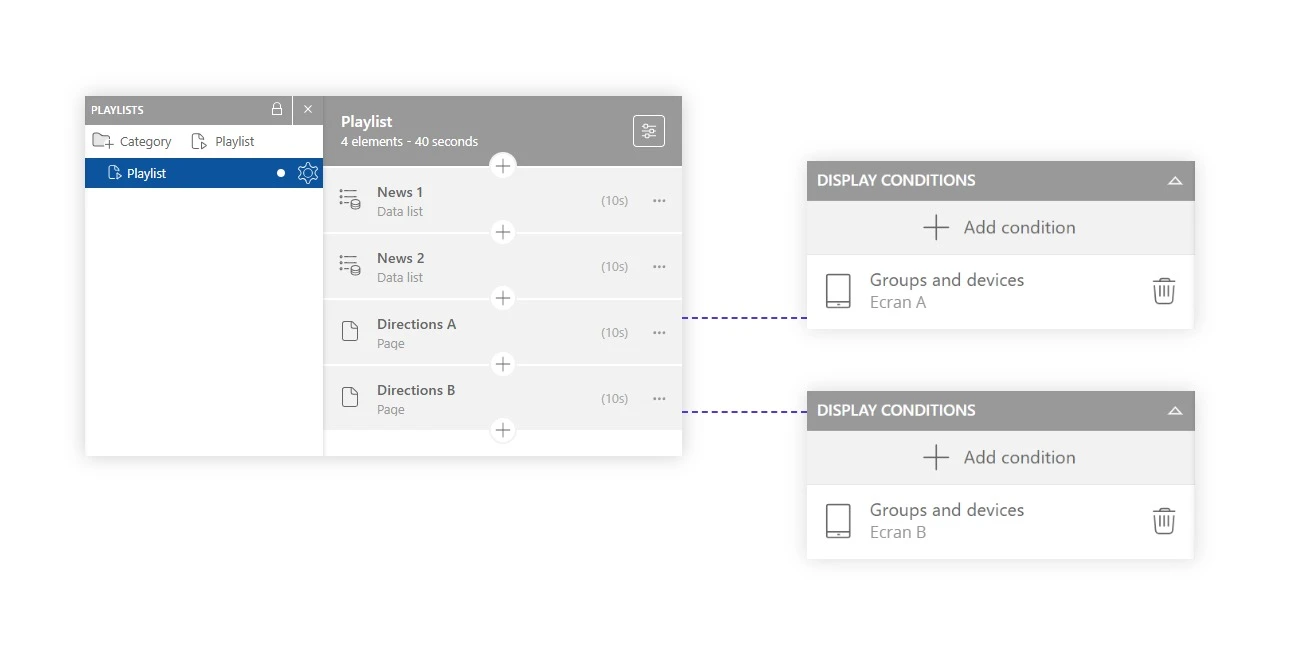
This way, each screen displays the correct signage while sharing the same news playlist.