Manipulation
Introduction
The Manipulation interaction allows multipoint tactile manipulation: it includes moving, zooming and rotating elements.
It can be applied to any interactive element: photo, text, shape, video...
Simple Manipulation

To add a "Manipulation" interaction to an element, select it then click on the "Element interactions" button (touch icon) in the right sidebar of the interface. Choose the interaction from the proposed list.

As soon as the interaction is added, the element can be manipulated. View the default parameters by clicking on the "Preview" button at the top right of the interface. The preview window appears: it allows you to test your project in real situation.
General Options
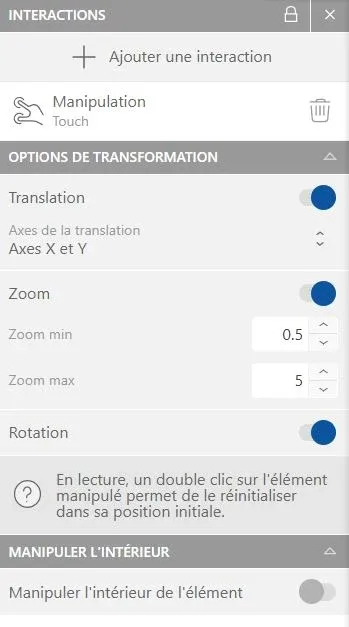
All manipulation parameters can be customized in detail:
- Translation designates the manipulation of the element from left to right and bottom to top. By disabling translation, the element cannot be moved in the page. You can also choose to block this function on the X axis (horizontal) or on the Y axis (vertical) only.
- Zoom allows enlarging or shrinking the element. Control the maximum and minimum size of the object by modifying the proposed values. Disable this option by clicking on the switch.
- Rotation is not a customizable option, but it can be disabled like the others.
Slowdown Options
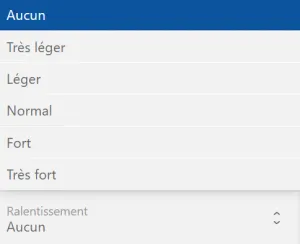

When released, a manipulable element can continue its movement for a few moments. This slowdown option is customizable in the advanced options window, below the translation options.
≫ Light slowdown
≫ Very strong slowdown
Inner Manipulation Options
Each element consists of a resource displayed in a block. In this sense, it is possible to apply manipulation to the resource only: activate the "Manipulate element interior" function so that the resource is manipulable independently of the block.
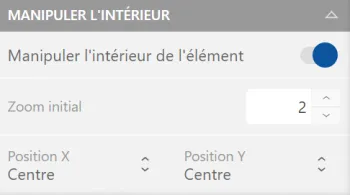
By using this option, you can control the size and initial position of the internal resource. The element itself will not be modified, only its appearance and interactivity.