

Create a Project
Accessing the Platform
Login
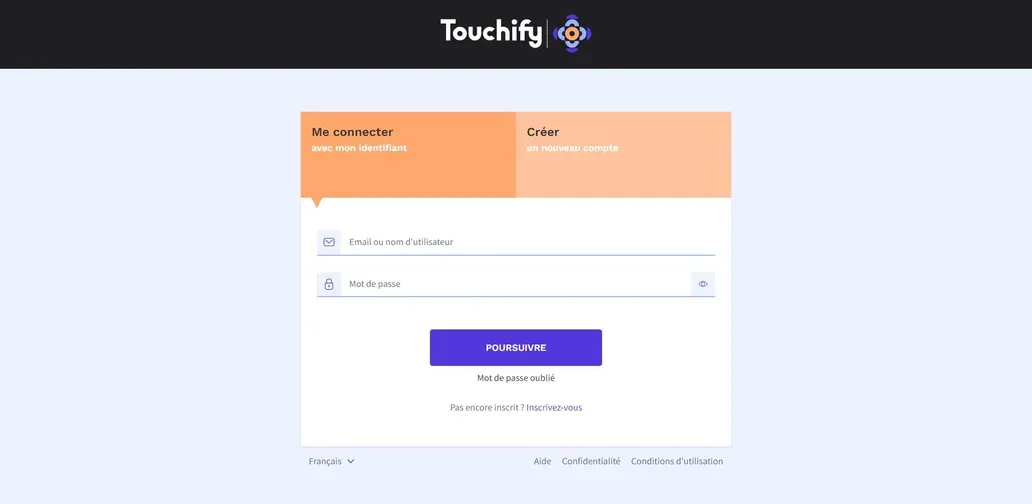
Go to the website touchify.io and click on the "Sign in" button at the top of the page. You can also type the address touchify.app directly in your browser's search bar.
Enter your credentials.
If your profile is linked to multiple accounts, first select the one you want to work in.
Project Creation
You arrive at the page dedicated to your projects.
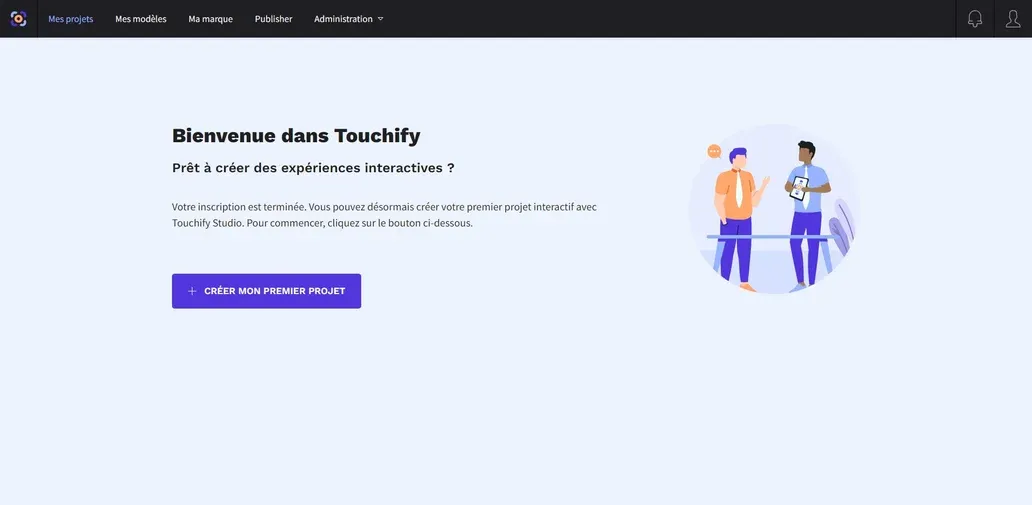
If this is your first login, click on the "Create my first project" button.
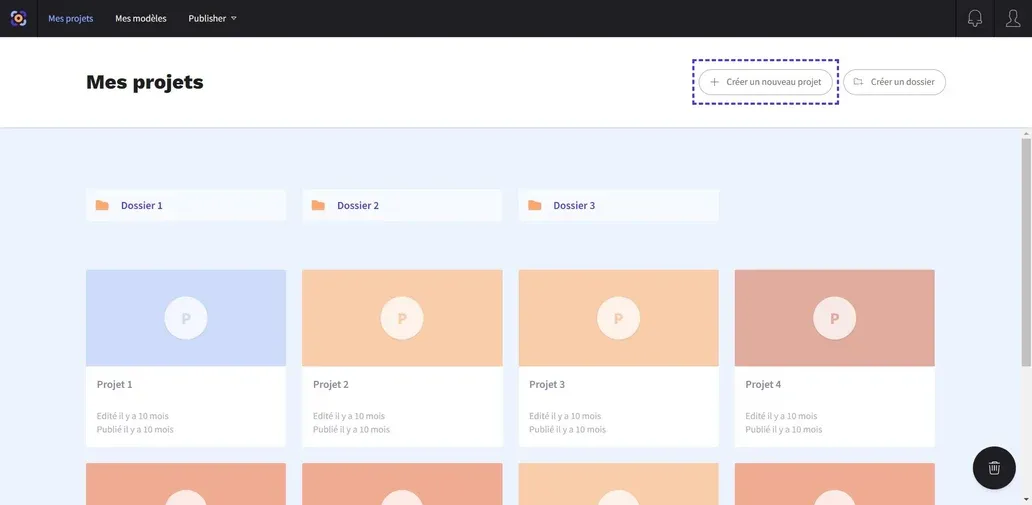
If you already have access to multiple projects, click on the "Create a new project" button located at the top right of the section.
Project Type
Several parameters need to be defined when you create a new project.
Three project types are suggested to you: each of them allows you to optimize the features you will use in the Studio.

- Interactive Display: offers a wide choice of different interactions and allows you to customize the project features in depth
- Dynamic Display: deepens automatic sequencing, conditions and page transitions functionalities
- Dynamic Presentation: adapted for presentation-type projects, possibility to export in PDF format
Resolution
The format of your project is fully customizable.
A wide list of dimensions is offered to you, classified by resolution or by device type; if needed, enter the desired dimensions by clicking on the right button "Customize".

Classification Options
You can classify your project in a team or in a folder from its creation.
The "Team" function manages accessibility to the project: it can only be seen or modified by members of the selected team.
The "Folder" function simply allows you to classify your projects in different categories.

Once these parameters are defined, click on the "Create project" button.
Congratulations, your project has been created!
Touchify Studio has opened in a new window. The Studio creation interface will allow you to integrate content and customize the operation of your project.