Shapes
Draw

Click on the "Insert a shape" button in the insertion menu on the left of the interface. A window containing the list of available shapes will open.
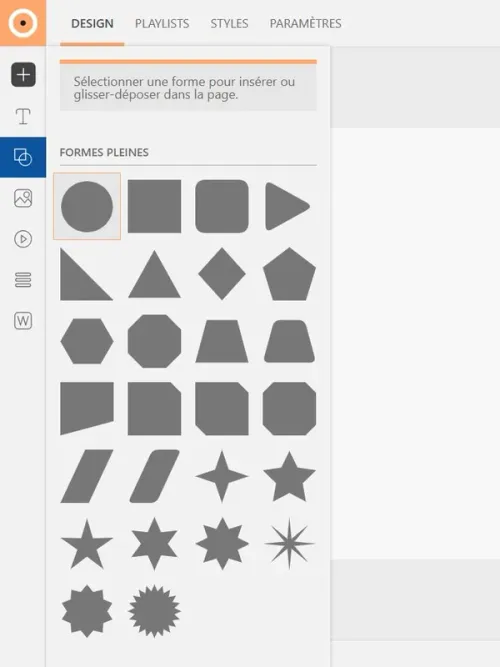
Method 1: drag & drop
Drag and drop the shape of your choice into your page: it will appear where you release the click.

Method 2: draw
Select the shape of your choice, then hold down the left click and draw a block anywhere on the page. A shape with the dimensions of the block will appear when you release the click.
Customize
Color and Outline
Click on your element then on the "Element customization" button in the menu on the right of the interface. Customize the background and border color in the "Color and outline" panel.
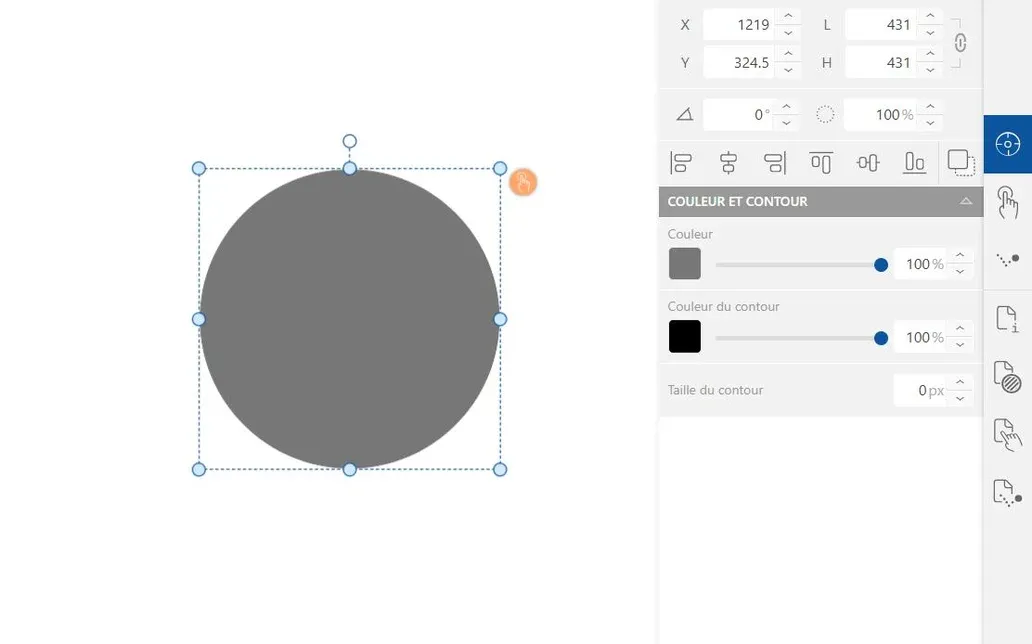
Click on the color dots to modify the hue; drag the slider to adjust opacity.
Modify the outline size and corner rounding according to your needs.
Angle and Orientation (optional)
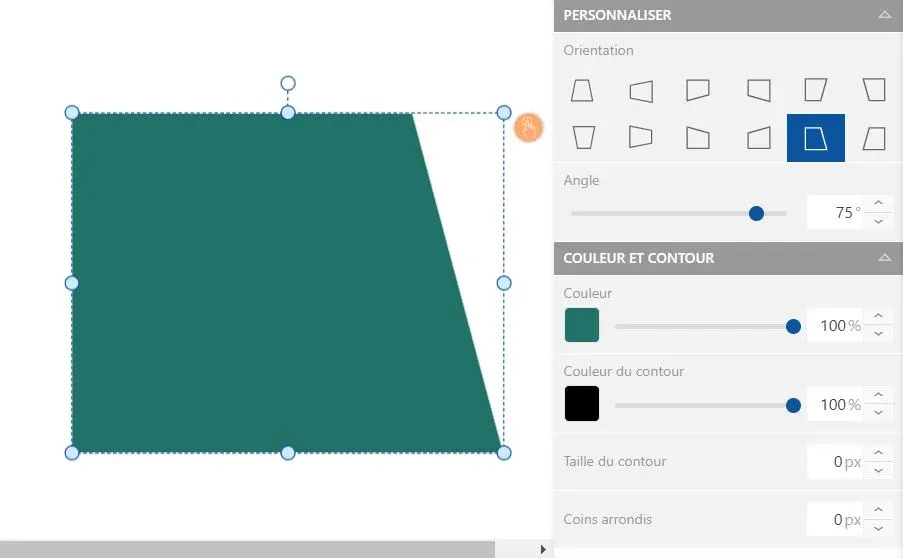
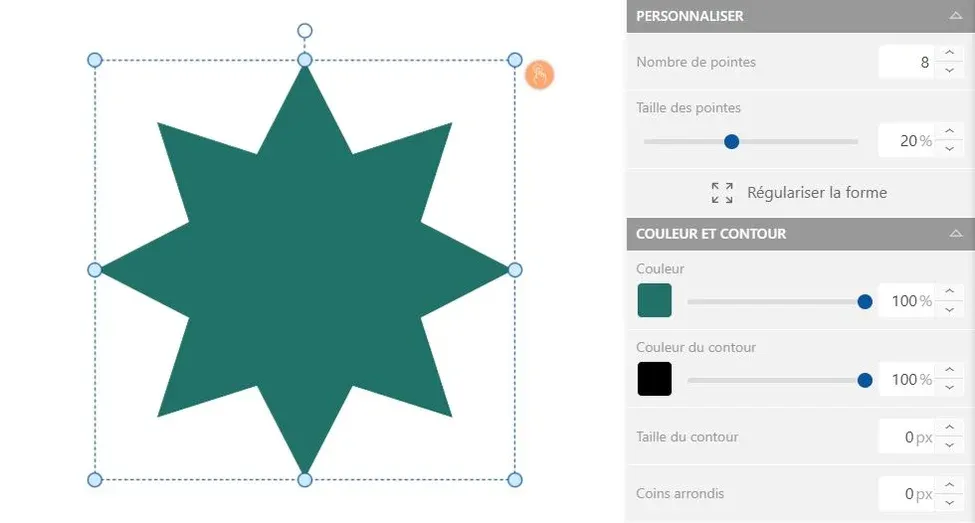
Some shapes can be customized in detail: number of branches for a star, degree of inclination for a trapezoid... These parameters can be modified in the "Customize" panel, just above "Color and outline".