

Rooms Manager
Connect to administration
In this article, learn how to connect to Rooms manager with your administrator account.
Access the Rooms Manager platform
To access the Rooms manager platform, you can use the following link: https://admin.roomsmanager.app/ or directly your organization's link https://admin.roomsmanager.app/{my-organization}.
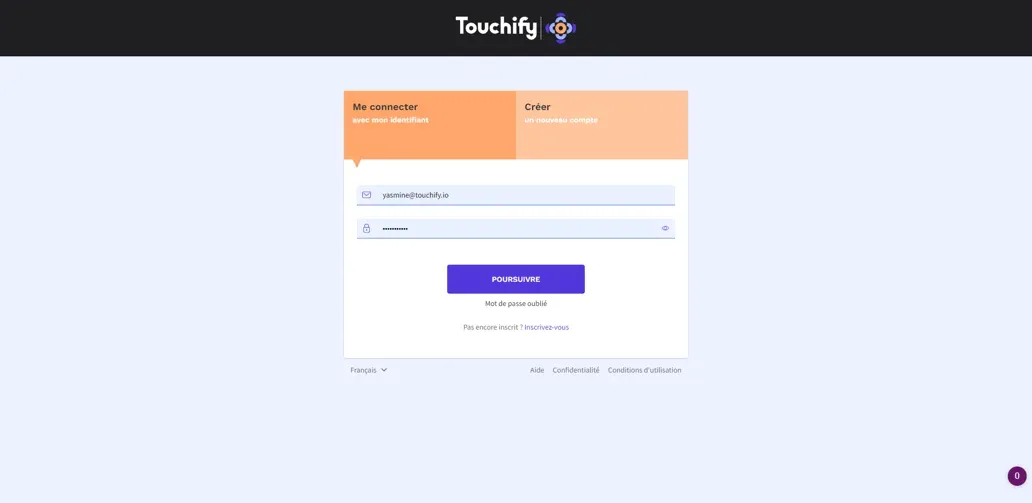
You will then be redirected to the Touchify login page, to connect, use your usual Touchify credentials.
Note:
To connect, please use your credentials used when registering with Touchify.
To connect, please use your credentials used when registering with Touchify.
Dashboard
You have arrived at the Rooms Manager administration portal.
The home page corresponds to your activity dashboard. On this page you will find a summary of your organization as well as a global view of reservations over the last 30 days.
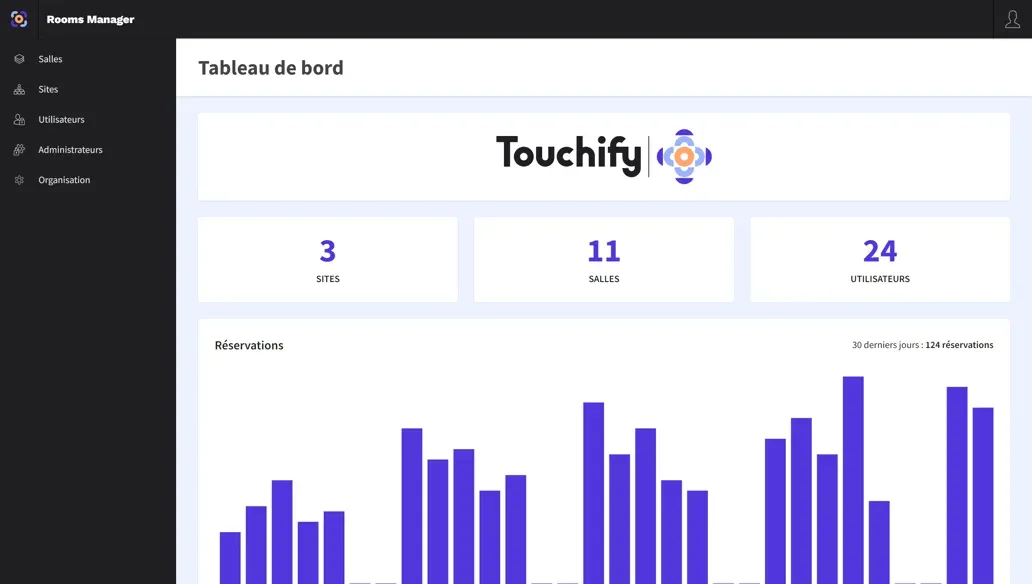
On the left, a menu allows you to access the different administration sections of your Rooms Manager space:
- Rooms: Create or manage your meeting rooms (learn more).
- Sites: Create or manage your organization's sites (learn more).
- Users: Create or manage users who can reserve rooms (learn more).
- Administrators: Import or manage your administrators and their rights.
- Organization: Configure your organization's settings.
Note:
You can also access the different sections by clicking on the number of sites, rooms or users in the Dashboard.
You can also access the different sections by clicking on the number of sites, rooms or users in the Dashboard.